Revit AI rendering: from BIM view to photorealistic image
Upload a Revit view export or screenshot and get a photorealistic render of that exact view in about 30 seconds. No plugin, no GPU.
Free to try · plans from $29/mo · See plans
- No Revit plugin or GPU needed
- Runs in the browser
- Commercial licence on paid plans
Archome renders your Revit views with AI — in the browser, in about thirty seconds. Export any 3D view as an image (a screenshot works too), upload it, describe the materials and mood, and get a photorealistic render of that exact view. No plugin to install, no GPU to buy, no separate visualisation software to learn.
AI add-ins like Veras live inside Revit, which means every render needs a Revit licence and a machine that runs it. Archome takes the opposite approach: it works from a plain image of your view, so rendering is decoupled from BIM entirely. Anyone on the team can visualise the model — from any computer with a browser — while your Revit file stays untouched.
100 free credits to start. No credit card, no plugin, nothing to install.
How it works
- 1
Export or screenshot a Revit view
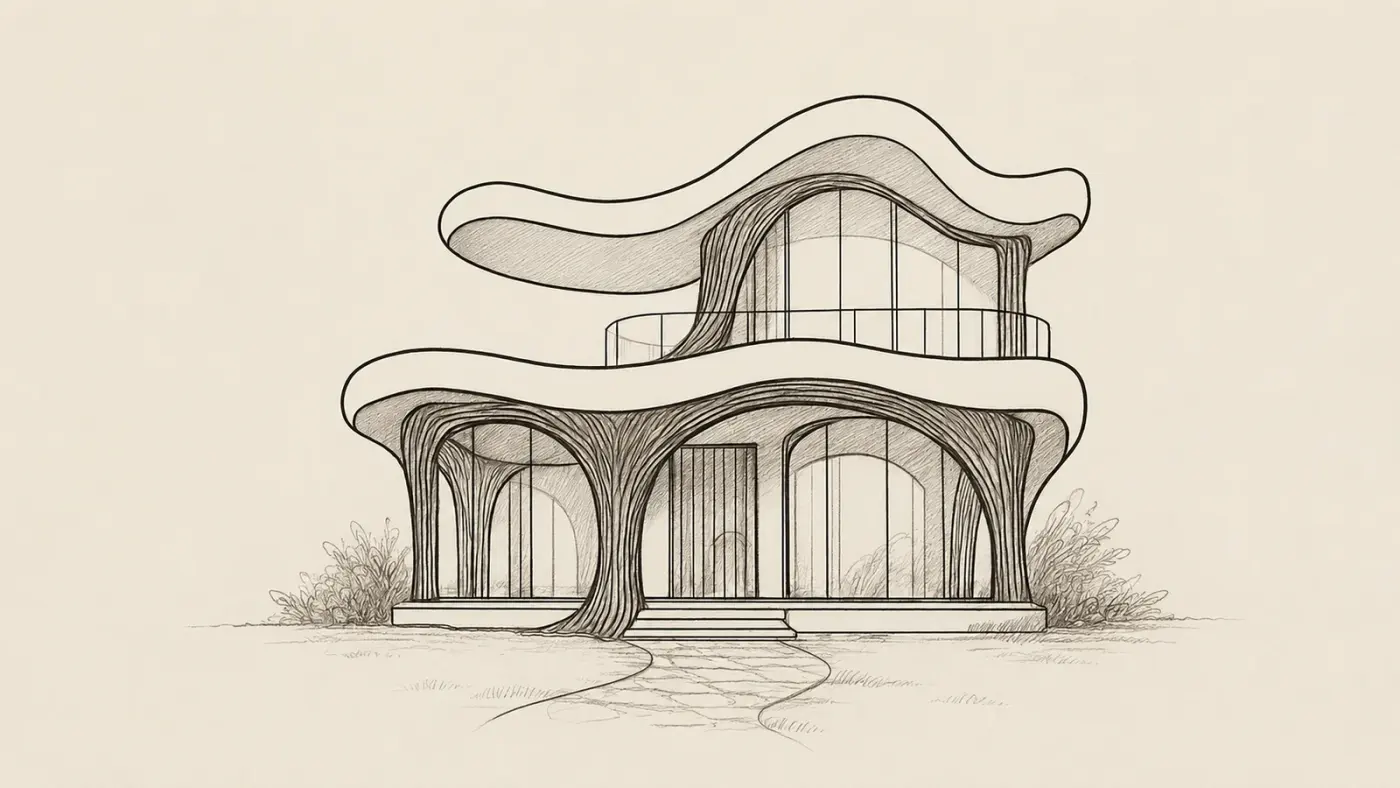
Any 3D view works: an image export, a print-to-image, or a plain screenshot of the view window. No add-ins to install, no model upload, no IFC juggling.
- 2
Describe the finished building
Plain words: "brick and glass facade, overcast daylight, mature street trees, people at the entrance". No material mapping, no lighting setup.
- 3
Get the photorealistic render
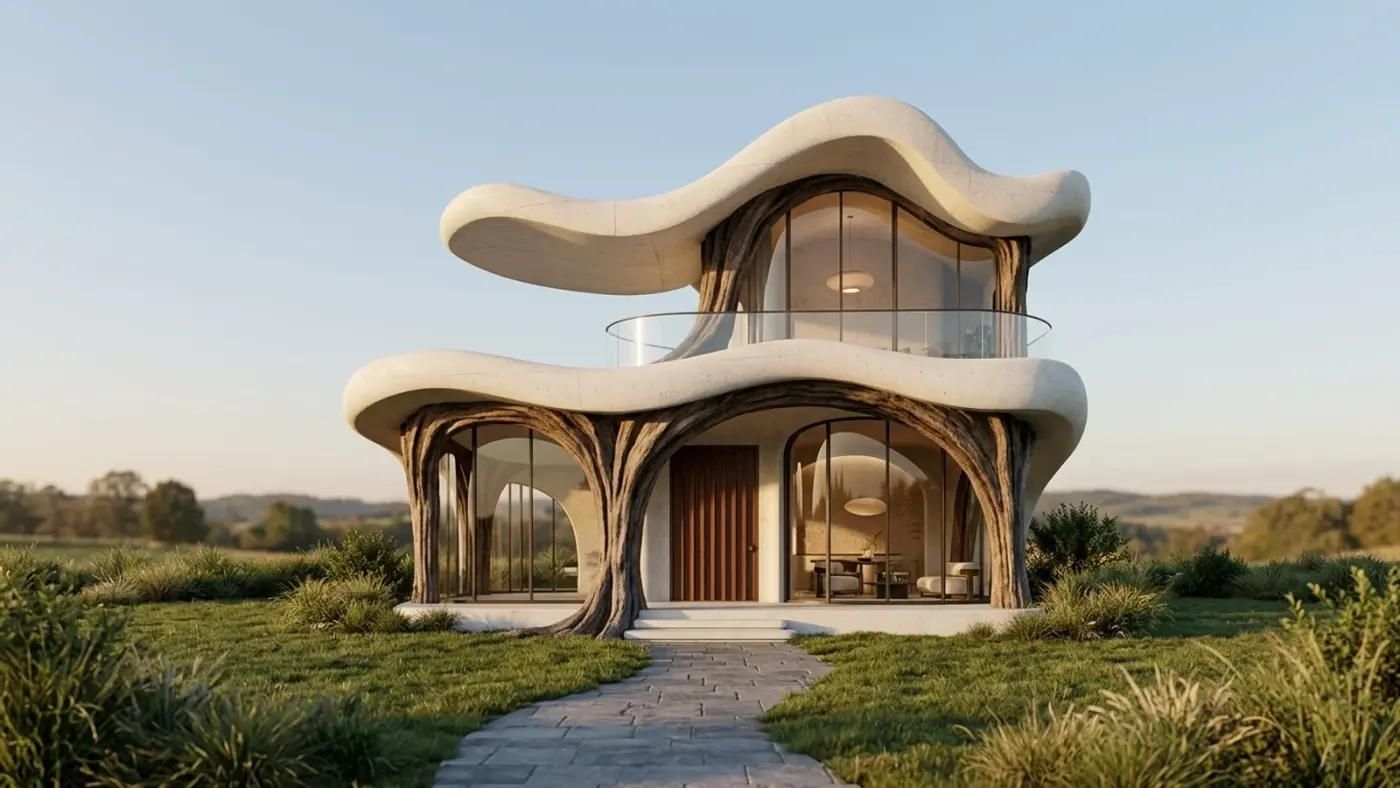
The render comes back in about 30 seconds — same massing, same camera, but photoreal. Generate variations, compare design options, download in high resolution.
Who it's for
- —Architects turning working Revit views into client-ready visuals without leaving BIM flow
- —BIM teams whose visualisation people do not have (or need) a Revit licence
- —Practices that want early-stage design imagery before committing to a full viz pipeline
- —Project managers producing quick, convincing images for stakeholder and planning meetings
Frequently asked
How do I render a Revit view with AI?+
Export any Revit view as an image — or just take a screenshot of the view window — and upload it to Archome in the browser. Describe the materials, lighting and mood you want, and a photorealistic render of that exact view comes back in about 30 seconds. Your geometry, camera and composition are preserved; the AI replaces flat BIM shading with real materials, light and context.
Do I need a Revit plugin?+
No. That is the key difference from tools like Veras, which run as a Revit add-in and therefore require a Revit licence on the machine doing the rendering. Archome works from a plain image of your view, so anyone on the team — including people without a Revit seat — can generate renders in the browser.
Do I need a GPU or rendering hardware?+
No. All rendering happens in the cloud. Revit itself is demanding enough on hardware; Archome adds nothing to that load. A standard laptop and a browser are all you need.
Will the render match my Revit model?+
Yes. The render is generated from your actual view, so the massing, proportions and camera angle you set up in Revit carry through. What the AI changes is the presentation layer: realistic facades and finishes instead of flat BIM colours, believable sky and vegetation instead of a default background.
Is it free to use?+
Yes, it is free to start. Every account gets a one-time 100-credit trial (it does not renew). Each free render costs 30 credits, so that is three renders in total, with no credit card required. Paid plans add more credits, the Ultra engine and a commercial licence.
Render your next Revit view with AI
Export a view, upload it, and get a photorealistic render in about 30 seconds. 100 free credits to start — no plugin, no GPU, no credit card.
Try it free