Render from Revit with AI: No Plugin Needed
· 4 min read
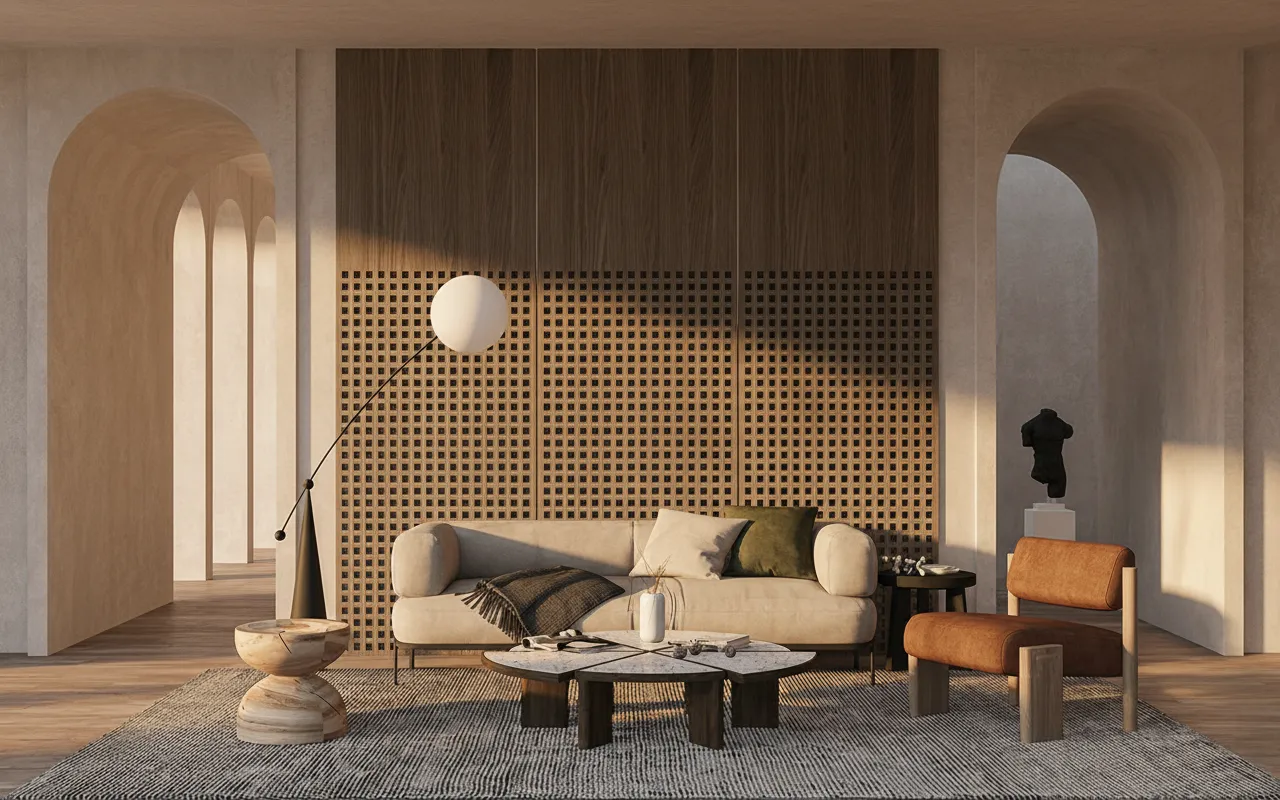
Revit is where the project truth lives — but getting a presentation image out of it still usually means Enscape, Twinmotion or a V-Ray pipeline. If you just need a convincing visual of the current model state, there's a faster route: export the viewport, let AI do the realism.
The 3-step workflow
- Set up the view in Revit. A 3D view or camera view, ideally with Shaded or Consistent Colors visual style. Hide annotation categories — the cleaner the image, the better the AI reads it.
- Export the image. File → Export → Image, or simply a high-res screenshot of the viewport.
- Render with AI. Drop the export into Sketch to Render, describe materials and lighting (“white render facade, larch cladding, overcast Nordic light”), and generate. ~30 seconds later you have a photorealistic version of your geometry.
Why this works well with BIM models
Revit exports have exactly what the AI needs: correct proportions, real openings, honest massing. The AI adds what BIM views lack — materials with texture, believable light, sky, landscape and depth. Your camera angle survives because it's baked into the export.
Where this fits vs a native plugin
Tools like Veras run inside Revit and are excellent for documentation-stage imagery. The export workflow wins on flexibility: no per-seat licence, works with any Revit version (or Archicad, or Vectorworks — anything that exports an image), and the same subscription also covers interior restyling, walkthrough video and 4K enhancement. Teams on SketchUp or 3ds Max get one-click plugins on top. The Revit AI rendering page walks through this exact export-and-render flow with the questions BIM teams ask most, including how it compares to a Revit-native plugin. It's also the workflow for a firm that hasn't budgeted for a render-capable GPU at all — Revit rendering without a GPU walks through why that hardware line item disappears entirely. The same export works just as well under a hard submission deadline — architecture competition boards with AI covers turning several Revit views into a finished board overnight.
The same export-and-render method works from Archicad, Vectorworks, Rhino or anything else that produces an image — the full sketch to render guide covers which file types read cleanest and how to word the material and lighting prompt.
Test it with the model you have open right now: export one view, upload it, and compare the result with your last Enscape pass. First renders are free.
Working at firm scale?
If Revit is your office standard, the per-seat and pipeline questions matter as much as the render: team credits, plugin entry points and API batching are covered in Archome for architecture firms, and the buying checklist for the whole category lives in choosing AI rendering software.