Render from SketchUp with AI: 2026 Plugin Guide
· 5 min read
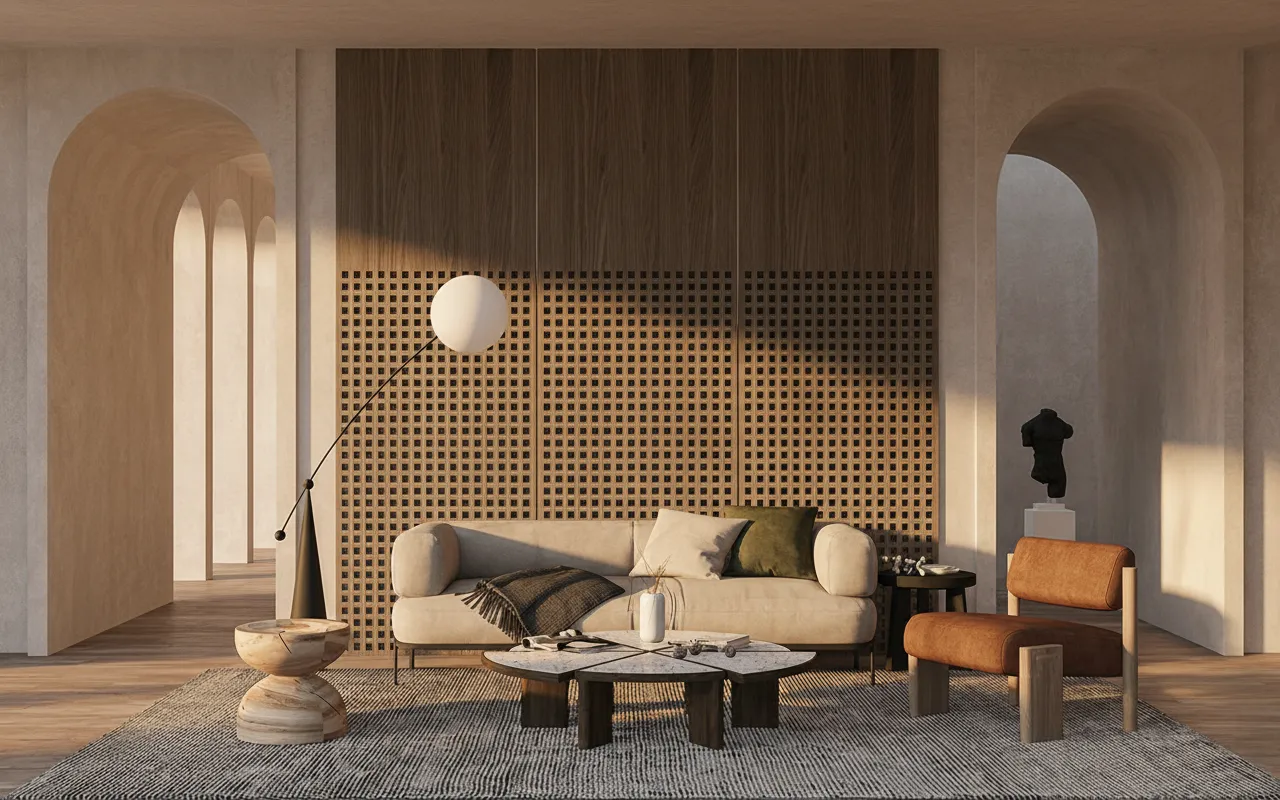
Most SketchUp users hit the same wall: the model is done, but turning it into a believable image still means learning V-Ray or Enscape, tuning materials and lights for hours, and waiting on a render. With an AI plugin you skip all of that — you send the current viewport straight from SketchUp and get a photorealistic render back in about 30 seconds.
What the plugin does
The Archome AI plugin adds a button inside SketchUp (and 3ds Max). It grabs your current view, sends it to the AI, and returns a photorealistic image with real materials, lighting and depth — without leaving your modelling software. You keep the geometry you built; the AI handles the realism.
Install it in two minutes
- Get your API key. Open your Archome dashboard and copy your render API key.
- Install the extension. Drop the SketchUp
.rbz(or the 3ds Max script) into Extensions, paste your key once. - Render from the viewport. Frame your shot, click Archome → Render, and the photorealistic result comes back in seconds.
Why render from SketchUp with AI instead of V-Ray
- Speed: seconds per image instead of minutes-to-hours per frame.
- No learning curve: no render settings, GI bounces or lighting rigs to master.
- Iterate live: change the camera, re-render, compare options with a client in real time.
- Cost: no expensive render licences or GPU farm.
Getting clean results
The AI follows your model, so a tidy viewport renders best: hide construction geometry, frame a real architectural shot, and describe the look you want (materials, time of day, mood). If you don’t have the plugin yet, you can do the same thing in the browser — export a viewport image and drop it into the tool; the sketch to render guide walks through that browser workflow and the prompt wording in detail. (Working in 3ds Max instead? There’s a 3ds Max plugin guide too.)
Ready to try it? Open Sketch to Render AI, upload a SketchUp screenshot, and see your model as a photo. First renders are free.
Beyond the plugin
The SketchUp plugin is the entry point; the professional questions (commercial licensing, team usage, deliverables beyond stills) are covered in Archome for architects and for architecture firms — and if you are comparing tools, the honest side-by-sides are on the comparison index. For a closer look at rendering any saved SketchUp view without the plugin at all, see SketchUp AI render from any view.