Sketch to Render: Photorealistic AI in Seconds
9 min read
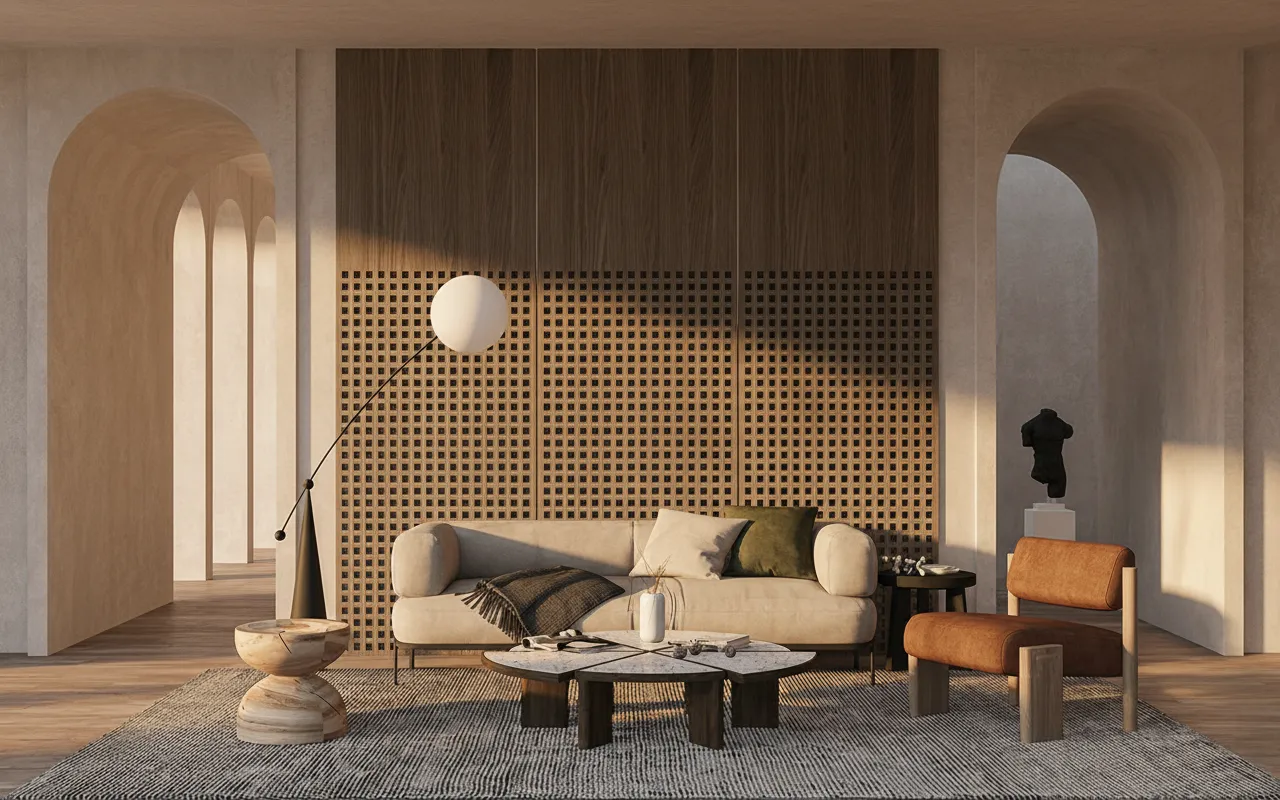
For decades, getting from a quick sketch to a presentation-ready render meant hours of 3D modelling, texturing and waiting on a render farm. AI has collapsed that pipeline to about 30 seconds. This guide shows you exactly how to turn any architectural sketch — pencil, marker, or a CAD line export — into a photorealistic image.
What you need
Just an image. A clear line drawing works best: clean edges, readable proportions, and a recognisable subject (a facade, a room, a massing study). Phone photos of paper sketches are fine as long as the lines are visible.
Which file types actually work
The AI reads pixels, not geometry, so anything you can turn into an image is a valid input. That covers more than most people assume:
- Hand drawings — pencil, pen, marker. Photograph the page straight on, in even light, so the lines stay crisp.
- CAD and DWG line work — you do not upload the DWG itself. Open the drawing in AutoCAD (or any DWG viewer), frame the elevation or perspective you want, and export a PNG/JPG. That raster export is what the AI renders. This is the practical answer to "is there a DWG AI renderer": the AI step happens after the export, and it keeps every line you drew. The AutoCAD AI rendering tool is built around exactly this export-and-render workflow.
- 3D viewport screenshots — SketchUp, Revit, Rhino, 3ds Max, Archicad, Blender. A shaded or hidden-line viewport gives the AI clean structure to follow. SketchUp and 3ds Max users can skip the export entirely with the SketchUp plugin or the 3ds Max plugin, which send the live viewport straight over.
- Massing and concept diagrams — even a blocky white-model study renders into a materialised building.
Working in Revit? The Revit export workflow is the same three steps and needs no plugin at all.
Step by step
- Upload your sketch. Drag in a pencil drawing, concept sketch or CAD screenshot.
- Choose a look. Photoreal, studio, twilight or a custom prompt describing materials and lighting.
- Generate. The AI keeps your linework and composition while adding realistic materials, light and depth — usually four alternatives per run.
- Refine. Adjust the prompt (time of day, material palette) and regenerate until it matches your intent.
Tips for the best results
- Stronger, cleaner lines give the AI a clearer structure to follow.
- Name the materials you want — “board-formed concrete, oak, brushed brass” — instead of leaving it generic.
- Specify lighting: “golden hour”, “overcast soft light”, “blue-hour with warm interior glow”.
- Crop out the sketchbook edge, your hand, and stray notes. Anything in frame is something the AI will try to interpret.
- Change one variable at a time between runs. Rewriting the whole prompt makes it impossible to tell which word actually fixed the image.
Sketch to render vs the traditional route
The comparison that matters is not "is AI better than V-Ray" — it is which tool belongs at which stage of the project.
| Model and render (V-Ray, Enscape) | AI sketch to render | |
| Input | Built 3D model, materials, lights | One drawing or viewport image |
| Time to first image | Hours to days | About 30 seconds |
| Skill needed | Modelling plus render engine | A sentence of description |
| Cost per image | Licence, GPU time, operator hours | 15 credits Fast, 45 Ultra |
| Design accuracy | Exact — it is your model | Follows your linework, interprets detail |
| Best stage | Final presentation, documentation | Concept, options, client conversation |
Most practices end up running both: AI for the ten options nobody will ever build, the traditional pipeline for the one that gets signed off. If you are weighing specific products rather than approaches, the 2026 AI rendering tool comparison covers nine of them side by side.
What it costs
Sketch to Render runs on credits rather than per-seat licences. A Fast render is 15 credits; Ultra quality is 45. Every account gets 100 free credits to start with no card, once — every free render costs 30 credits, which works out to three renders in total. Paid plans start at $29/mo (1,000 credits) and go to $49/mo (3,000) and $119/mo (10,000); one-time credit packs ($15, $39, $99) stay valid for 12 months if your work is project-based rather than continuous. Any purchase adds a commercial licence. Full breakdown on the pricing page.
Honest limits
Three things sketch-to-render will not do, and it is better to know them before a client meeting:
- It interprets, it does not measure. The AI follows your composition and proportions, but it invents detail your sketch never specified — mullion spacing, paving joints, the exact reveal on a soffit. Do not hand the output to a contractor as a specification.
- Ambiguous lines produce ambiguous buildings. If a line could read as either a balcony or a shadow, the AI will pick one, and it may not pick yours. Tighten the drawing before blaming the prompt.
- Consistency across a set takes work. Each generation is independent, so four views of the same building can drift in material and light. Lock the wording of your material-and-light description and reuse it verbatim across every view.
Why architects use AI sketch-to-render
Early in a project you need to communicate intent fast, not produce a final 3D model. AI rendering lets you test ideas, share options with a client, and iterate in minutes — then move to detailed modelling only on the direction you actually choose.
Sketch to render: step-by-step workflow
The whole pipeline, condensed to four steps:
- Upload your sketch — pencil, marker or CAD line export — to Sketch to Render.
- Describe the materials and light. One sentence is enough: surfaces, palette, time of day. Stuck for wording? Steal from our render prompt library.
- Generate. About 30 seconds later you get four photorealistic options that keep your linework and composition.
- Enhance to 4K for the version going to print or a client deck.
Most first-timers get a usable render on the second or third prompt tweak — iterate on the words, not the drawing.
Ready to try it on your own drawing? Open Sketch to Render AI and upload a sketch — your first renders are on the house.
FAQ
What is the best sketch to render AI in 2026? The honest answer depends on what you feed it. If you start from hand sketches or CAD line work and need the result to stay faithful to your drawing, pick a tool built for architecture rather than a general image model — geometry preservation is the whole difference. Archome, Gendo and Vizcom all sit in this category; the nine-tool comparison covers how they differ on inputs, output and price.
Is there an AI rendering tool that works with DWG files? Not by reading the DWG directly — current AI rendering tools work on images. The working method is to open the drawing in AutoCAD or any DWG viewer, frame the view you want, export it as a PNG or JPG, and upload that to the AutoCAD AI renderer. Your linework carries over exactly; the AI adds materials, light and depth on top of it.
Will the AI change my design? It follows your linework, composition and camera, so the massing, openings and proportions you drew stay put. What it does add is detail your sketch never specified — surface texture, reflections, planting, sky, small architectural elements. Treat the output as a rendering of your design, not a dimensioned drawing of it.
How long does a sketch to render take? About 30 seconds per run, and each run returns four alternatives rather than one, so a single generation already gives you options to compare. Refining the prompt and regenerating takes the same 30 seconds again.
Can I use AI sketch renders in a client presentation commercially? Yes. Any paid plan or credit pack includes a full commercial licence, so renders can go into client decks, competition boards, planning submissions and marketing. Free-plan renders are for evaluation and personal use and are intended for testing.
Do I need to know how to write prompts? No, but a specific sentence beats a vague one every time. Name the materials and the light — "board-formed concrete, oak soffit, low winter sun" — instead of writing "modern". If you would rather start from something proven, the render prompt library has copy-paste starting points for exteriors, interiors and landscapes.
Does it work on interior sketches as well as facades? Yes — interior perspectives, sections and room elevations all render. For restyling an existing space you already have a photo of, Interior AI is the better fit, since it keeps the real walls and camera and changes only the design.