Render from 3ds Max with AI: 2026 Plugin Guide
· 5 min read
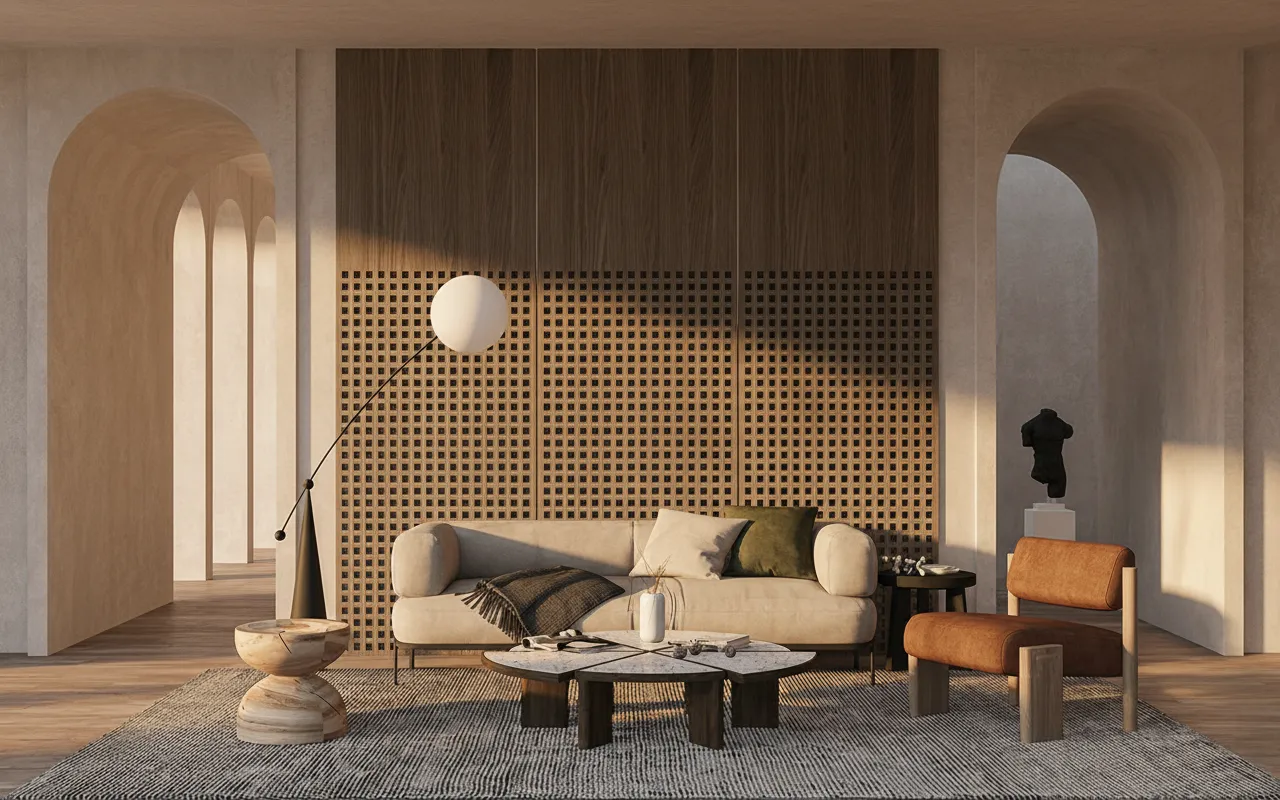
If you work in 3ds Max, you already know the cost of a beautiful image: V-Ray or Corona setup, material and lighting work, and render minutes for every frame. An AI plugin gives you a different option — send the current viewport straight from 3ds Max and get a photorealistic render back in about 30 seconds, while keeping the model you built.
What the 3ds Max plugin does
The Archome AI plugin adds a render action inside 3ds Max. It captures your active viewport, sends it to the AI, and returns a photorealistic image with real materials, lighting and depth — without leaving Max and without a render engine. Your geometry stays exactly as modelled; the AI handles realism.
Install it in two minutes
- Get your API key. Open your Archome dashboard and copy your render API key.
- Run the script. Load the Archome MaxScript (
.ms) in 3ds Max and paste your key once. - Render from the viewport. Frame your shot, run Archome → Render, and the photorealistic result comes back in seconds.
Why render from 3ds Max with AI instead of V-Ray or Corona
- Speed: seconds per image instead of long render times per frame.
- No setup: no GI, lighting rigs, render elements or material tuning to manage.
- Iterate live: change the camera, re-render, and compare options with a client in real time.
- Cost: no render licences or GPU farm for early-stage and presentation images.
Getting clean results
The AI follows your model, so frame a real architectural shot, hide working geometry, and describe the look you want — materials, time of day and mood. Prefer the browser? Export a viewport image from 3ds Max and drop it into the tool for the same result — the sketch to render guide covers what to write in the prompt and which file types read cleanest. (Modelling in SketchUp instead? There’s a SketchUp plugin guide too.)
Ready to try it? Open Sketch to Render AI, upload a 3ds Max viewport, and see your model as a photo. First renders are free.