
New · November 2026
Archome Canvas: the AI design board for interiors
Stop hunting through folders of renders. Put the whole project on one board: upload a room, render it, swap materials from a swatch photo, drop in a real product, add people and upscale — every option lands next to the image it came from, so you and your client choose in one screen. It uses your normal render credits; Canvas itself is included
Included with every account · uses your normal render credits, no extra fee · See plans
From the sample Canvas
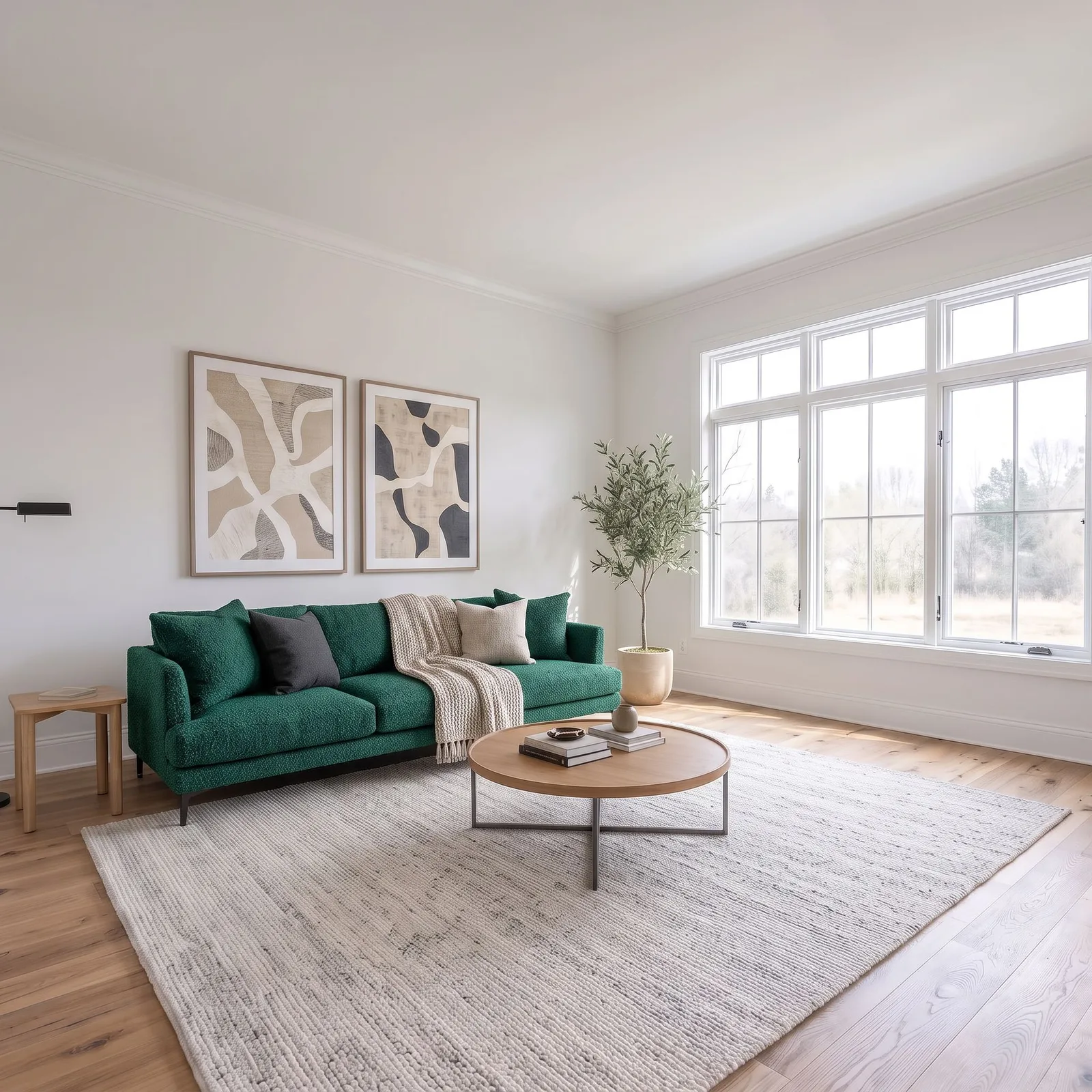
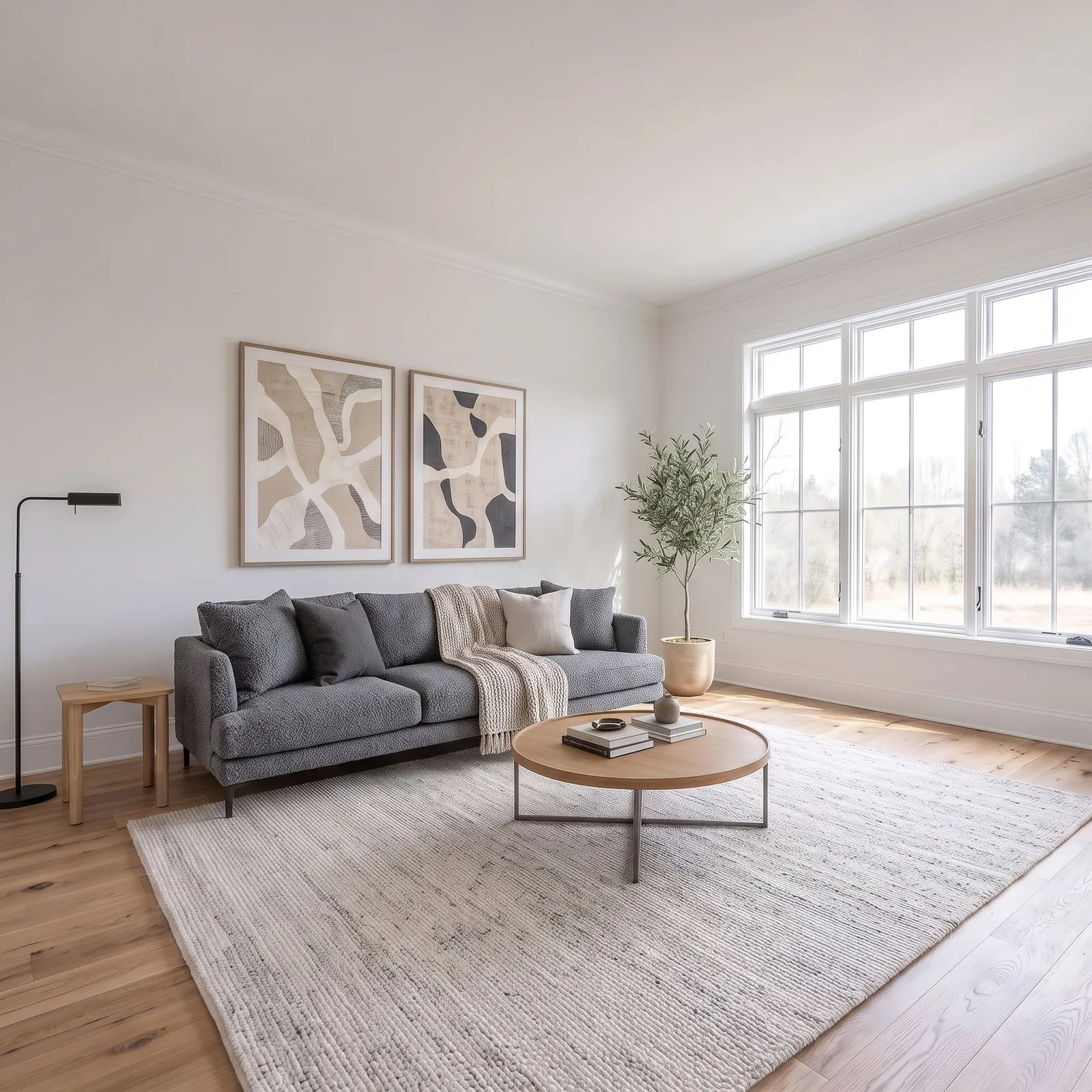
Cards from the sample board every new Canvas user sees: one living room render, three fabric swatches and the result each one made, a real product placed in the room, and people added.
Input: living room render 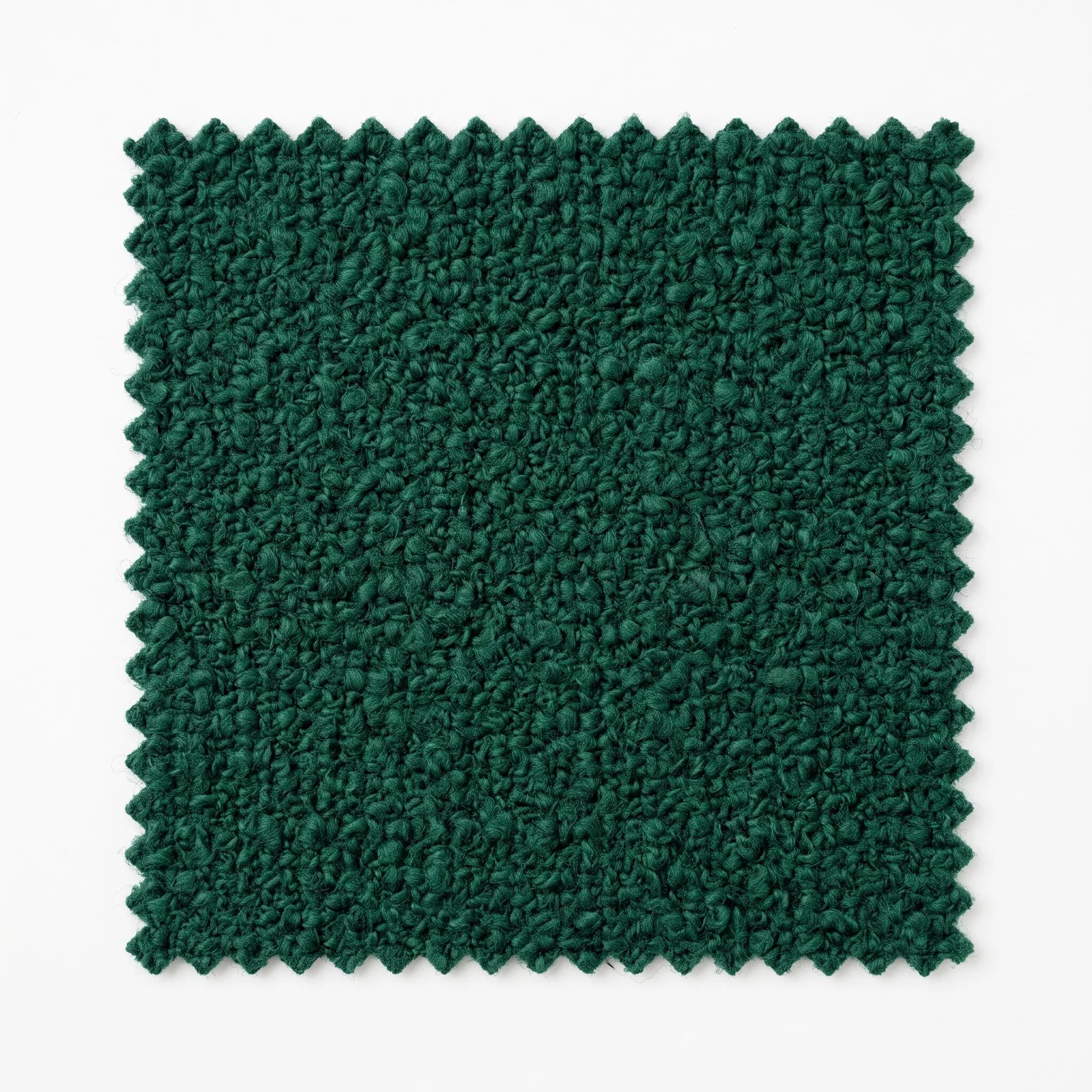
Swatch: green boucle Result: green swatch 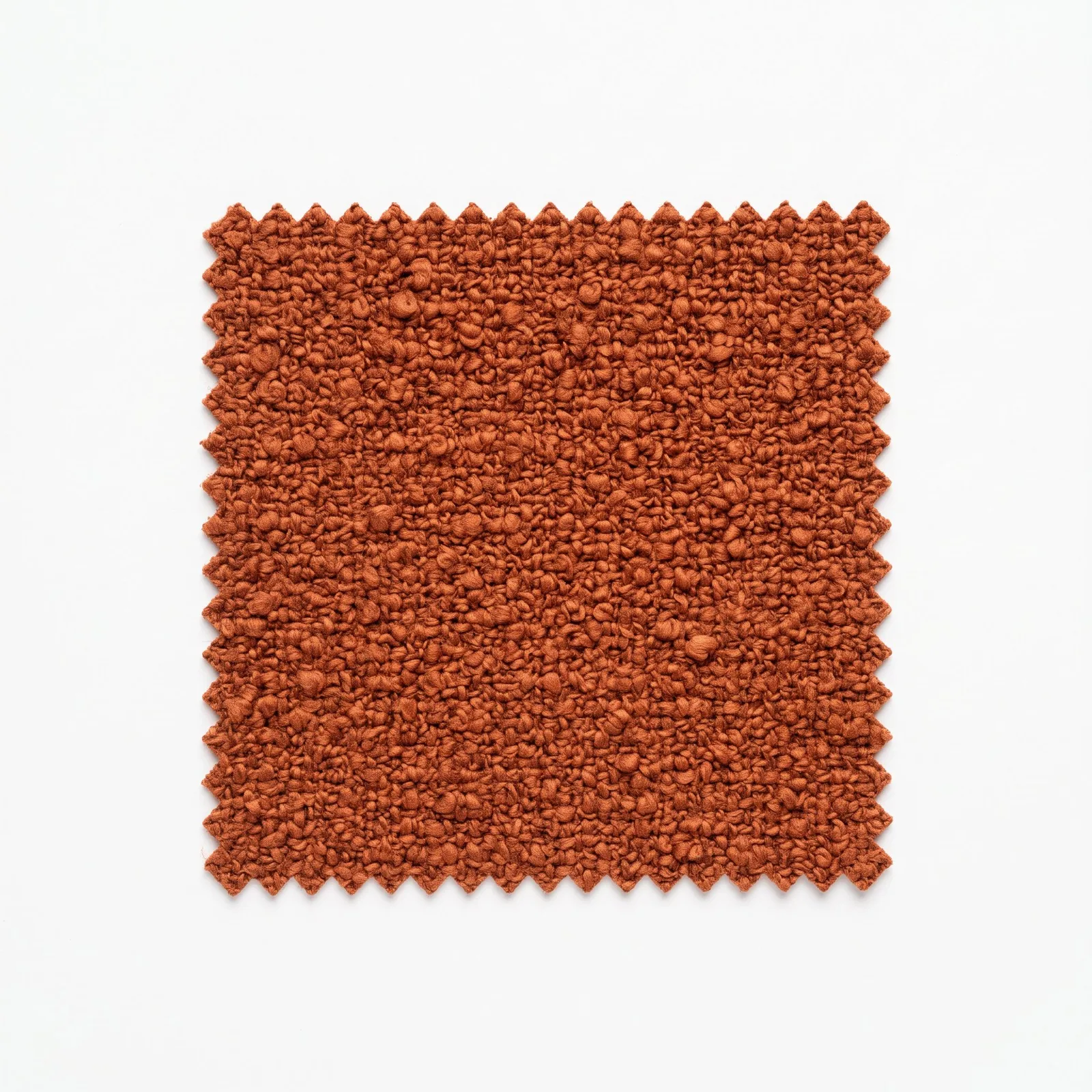
Swatch: rust boucle 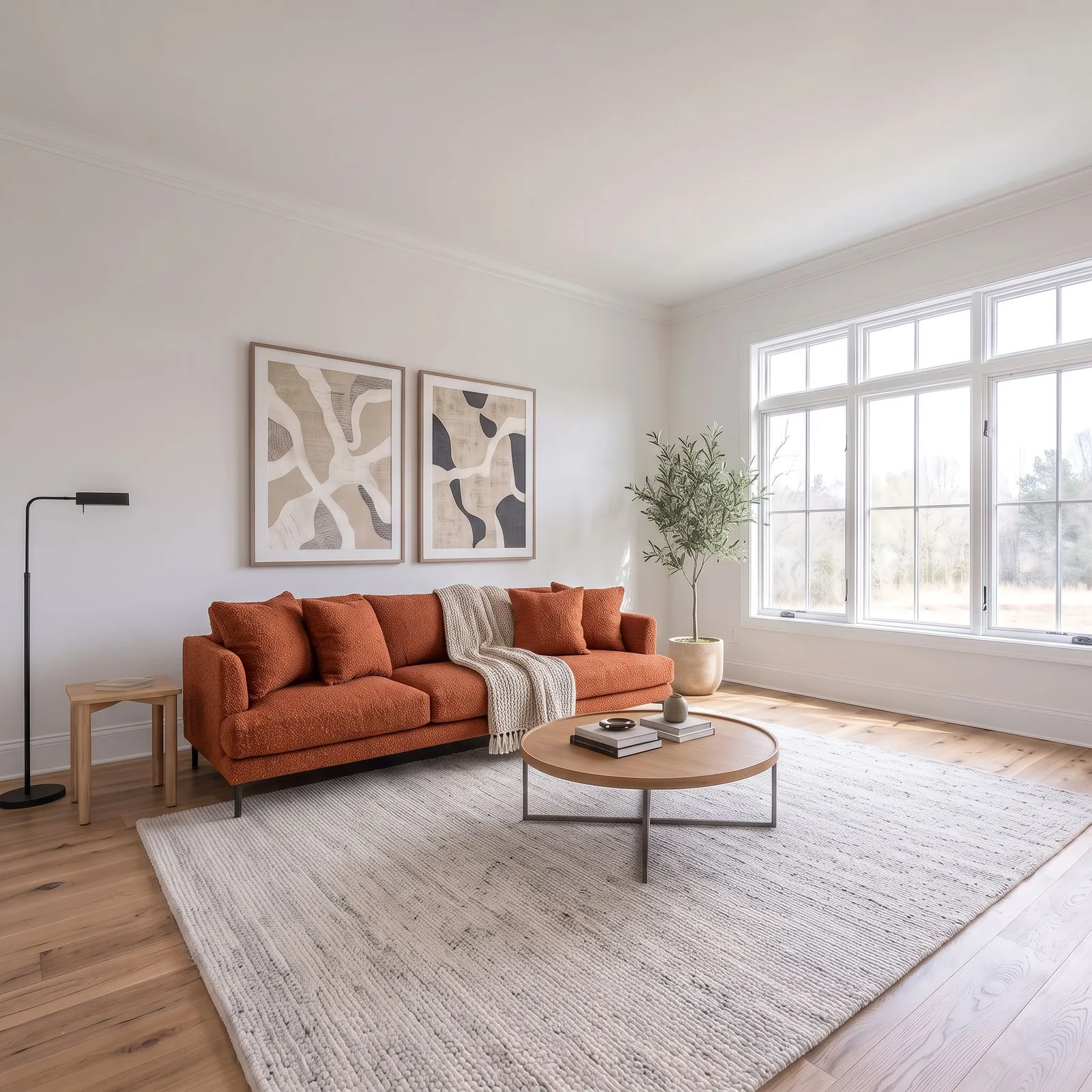
Result: rust swatch 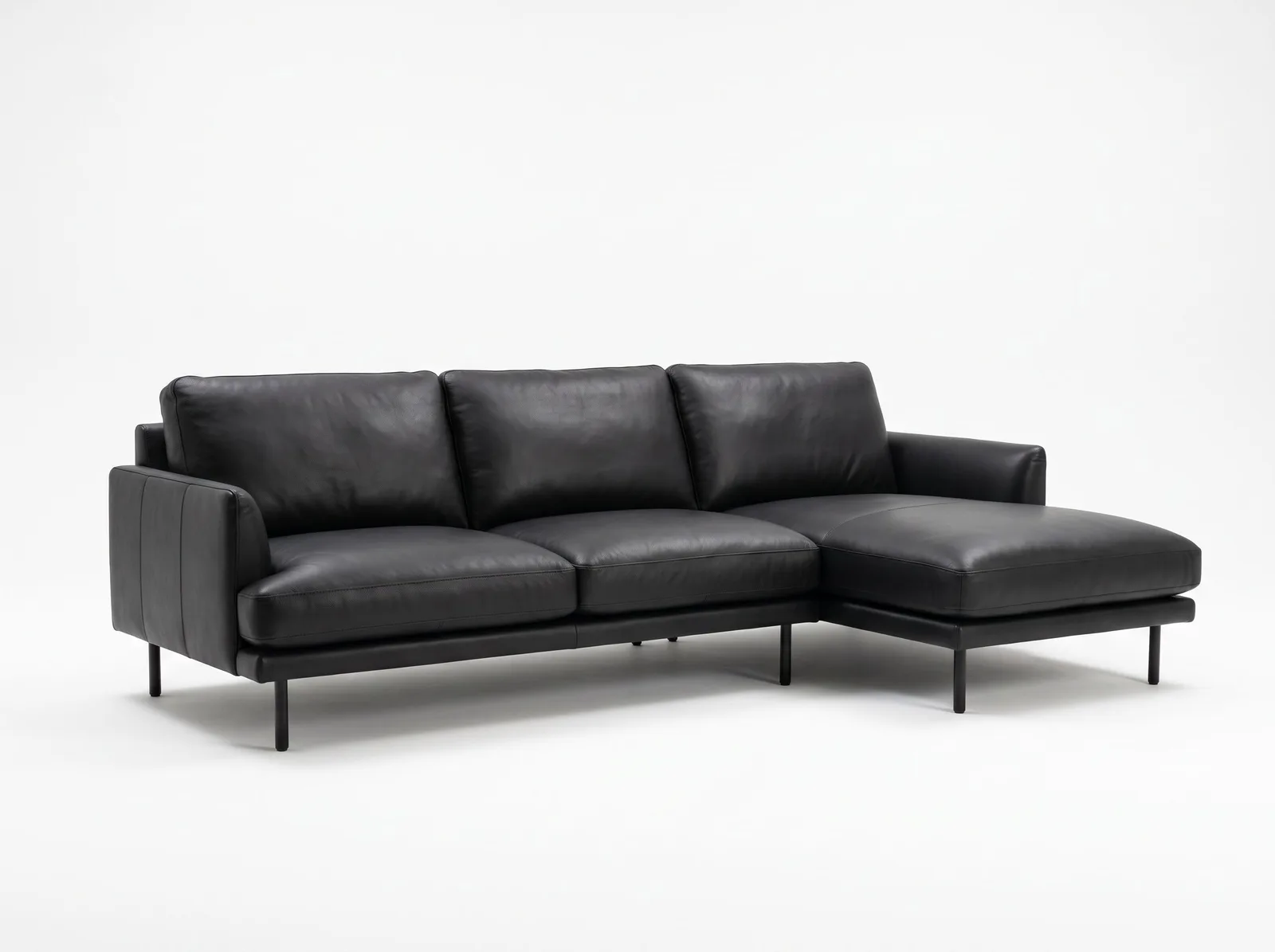
Product photo 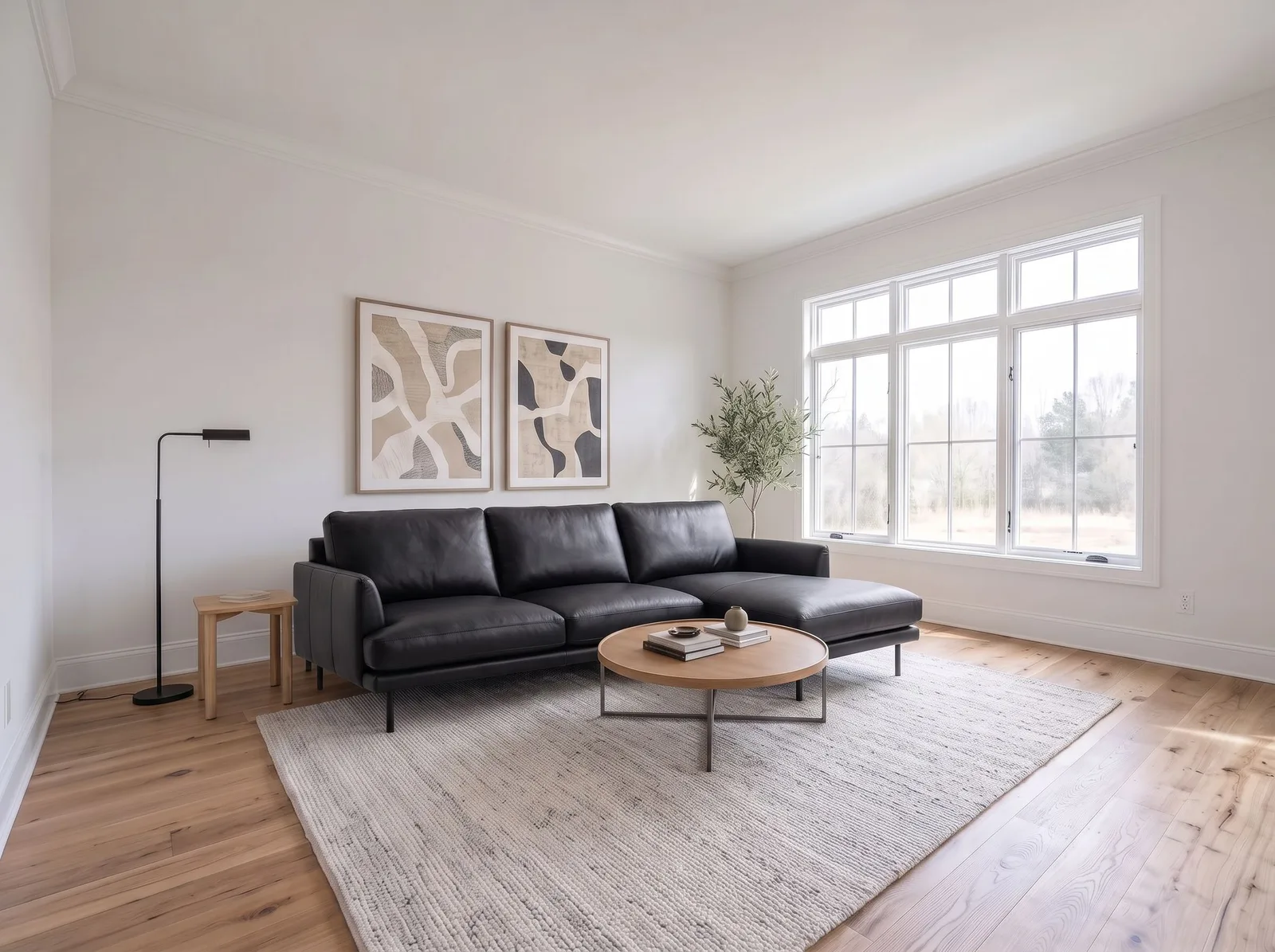
Result: product placed 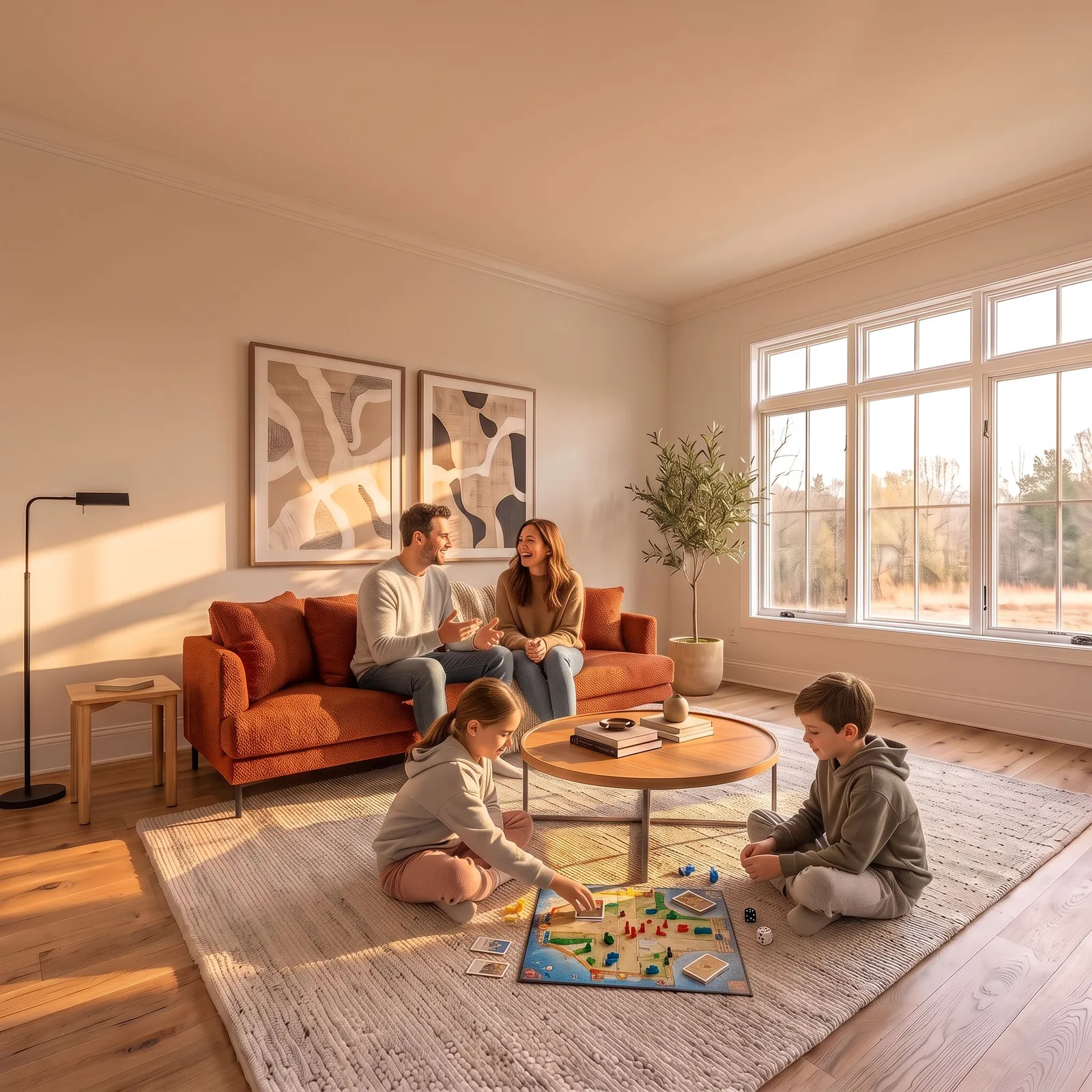
Result: people added
How it works, in 5 steps
Step 1
Add your image
Drag a room photo, render, sketch or reference onto the board, paste it with Ctrl+V, or press Add image. No image yet? Generate one from text on the board.
Step 2
Render it
Click the card and choose Render (Interior, Exterior or Sketch to Render). The result lands to the right as a new card, linked to the image it came from.
Step 3
Swap materials from a swatch
Put a fabric, stone or wood sample photo on the board and connect it to the render. Each swatch makes its own result, side by side, so the options can be compared on one screen.
Step 4
Add a real product and people
Connect a product photo — a sofa, a bed, a lamp — to the room render to place that piece in the room. Add people for scale and life.
Step 5
Upscale and present
Upscale the version you choose, mark it up with frames, text, pencil and arrows, keep notes next to the images, and download the results.
One board for the whole interior project
Archome Canvas is an infinite board inside your Archome account. Every image is a card: the room photo you started from, the render made from it, the fabric swatch you tried, the sofa you placed, the upscaled final. Each AI action starts from a card and drops its result as a new card right beside it, with a link back to its source — so a week later you can still see which render came from which photo and which swatch.
It runs the same engines as the single-purpose tools — Interior AI, Material Swap, the Render Enhancer and text to image — but keeps the options side by side instead of in a download folder. Notes, frames, text, pencil and arrows sit on the same board, and the Archome AI Assistant can run the next step for you when you describe it in a sentence.
How much does Archome Canvas cost?
| Option | What you get |
|---|---|
| Canvas itself | No extra fee. It is part of every Archome account |
| AI actions on the board | Your normal render credits, Fast or Ultra, the same as in the matching tool: a Fast interior render is 10 credits, a material or product swap 20, an upscale 30 |
| Free account | A one-time 100-credit trial, no card. The sample Canvas and the tour use no credits |
| Lite, $29/month | 1,000 credits; Plus $49/month 3,000; Studio $119/month 10,000 |
| One-time packs | $15 for 500, $39 for 1,500, $99 for 5,000 credits, valid 12 months |
Launched 15 November 2026
Who it's for
- —Interior designers showing a client three fabrics or finishes on the same room, side by side
- —Architects keeping concept renders, references and notes for one project in one place
- —Real estate agents and home stagers turning an empty listing photo into staged options
- —Renovators and contractors showing a homeowner the room before and after, with the chosen products in it
What sits on the board
Cards: inputs (your photos, sketches and renders), references (swatches, product photos, style images), results and notes. Cards can be moved, duplicated, relabelled and compared two at a time with a before/after slider.
Links: every result is connected to the card it came from, and you can draw your own links by dragging from the dot on one card to another — drag a bed photo onto a room render and Canvas offers to add it, apply it as a material or use it as a style reference.
Version history: each card keeps its earlier versions, and project history keeps every generation on the board, including ones you removed, so nothing you paid credits for is lost.
Drawing tools: frame, text, pencil, arrow and eraser, for marking up a render before a client call or grouping one room's options under a heading.
Archome AI Assistant: pick a card, write what you want ("make the walls white", "add this sofa"), and the assistant shows its plan and the credits before it generates anything.
Compare material options without losing track
The board is built for the question clients ask most: what would it look like in the other fabric? Drop three swatches next to one render, connect each one, and three results appear side by side, each linked to its swatch. The original stays untouched in the middle.
A step-by-step version of this workflow is in how to compare material options on one board. For a single swap without the board, Material Swap does the same job on one image.
Your first board: a sample Canvas and a short tour
The first time you open Canvas you land on a sample board: a living room render, three fabric swatches, a product photo and the results each one made, so you can see a finished workflow before you spend a credit. A short step-by-step tour walks you through selecting a card, picking a material and chaining the next tool.
When you are ready, New Canvas opens an empty board for your own project. Boards are kept with your account, so a project can be picked up again later.
Canvas or a single tool?
If you need one image — one staged room, one upscale — the single tool is quicker: virtual staging, Interior AI or the AI render editor. Canvas earns its place when a project has several options, several rounds and a client who wants to compare them.
Technical drawings are made in a separate tool. From a card on the board you can open an image in CAD Drafting, which turns floor plans into DXF, DWG and PDF sheets; no credits are used to open it.
Canvas vs a folder of renders
| Archome Canvas | Separate tools + a download folder | |
|---|---|---|
| Where results live | On one board, next to the image they came from | In downloads, named by date |
| Which render came from what | Linked card to card, with version history | Remembered or written down by hand |
| Comparing options | Side by side, or two at a time with a before/after slider | Opened one by one |
| Notes and markup | Notes, frames, text, pencil and arrows on the board | A separate document or slide |
| Price | Same render credits, no Canvas fee | Same render credits |
Frequently asked
What is Archome Canvas?+
An AI design board inside Archome AI. Upload images, render them, swap materials from a swatch photo, add real products and people, upscale, and generate images from text, with every result placed and linked next to the image it came from. It is in the dashboard menu as Canvas.
Does Canvas cost extra?+
No. Canvas has no separate fee. Each AI action on the board uses your normal render credits, Fast or Ultra, exactly as in the matching tool — for example 10 credits for a Fast interior render. The credits are shown before you generate. See pricing.
Can I change a material using a real sample?+
Yes. Put a photo of the sample (fabric, stone, wood, tile) on the board and connect it to the render. The material is applied from the swatch image, and each swatch makes its own result so you can compare them side by side.
Can I put a real product into the room?+
Yes. Connect a product photo, such as a sofa or a bed, to the room render and Canvas places that piece in the room. Check proportions against the real product dimensions before ordering.
Can I see which render came from which image?+
Yes. Results are linked to their source card, each card keeps a version history, and project history lists every generation on the board.
Does it work on a phone?+
Phones get a list view of the board; the full board with drag, zoom and drawing tools is on desktop and tablet.
Is there a free way to try it?+
Yes. Your first visit opens a sample Canvas and a step-by-step tour, which use no credits. A new account also gets a one-time 100-credit trial with no card.
Can Canvas make technical drawings?+
Not on the board itself. Technical drawings are made in CAD Drafting, which you can open from a card; it turns floor plans into CAD sheets in DXF, DWG and PDF.
Open Archome Canvas
Sign up and Canvas opens with a sample project and a short tour. New accounts get a one-time 100-credit trial, no credit card.
Start a Canvas