Twinmotion Alternative for Stills — Archome AI
A real-time engine you present in, versus an AI that finishes the picture.
Last updated: 3 August 2026
Archome AI vs Twinmotion: the short answer
For most buyers, Archome AI is the better pick over Twinmotion: 14 tools in one account, about 30 seconds per render, and 3 free renders to prove it on your own project.
- —14 tools on one credit balance: interior, exterior, virtual staging, sketch to render, floor plan to 3D, masterplan, video and more, instead of a separate subscription per job.
- —A clear unit cost: a Fast render is 10 credits, so Lite at $29/mo is 100 renders (about $0.29 each).
- —No subscription required: one-time packs from $15 for 50 renders, valid for 12 months.
- —A commercial licence on every paid plan, free SketchUp, 3ds Max and Rhino plugins, and rendering from inside ChatGPT.
What Twinmotion is
Twinmotion is Epic Games’ real-time architectural visualisation engine: import the model, assign materials, place assets, and navigate or record it live. For walkthroughs and animation it is one of the best tools money can buy.
Its cost is setup: everything you see must first be modelled, materialled and lit by you, and the experience leans on serious GPU hardware.
Where Archome AI differs
Archome AI starts where Twinmotion starts to feel heavy: you have A view — a viewport capture, a sketch, a photo — and you need it to look finished today. Upload the image, describe materials and mood, and a photorealistic still comes back in about 30 seconds with the geometry untouched.
No import, no asset placement, no GPU: it runs in the browser and works identically from Twinmotion captures, SketchUp views, hand sketches or site photos. Many studios use both — Twinmotion for the live walkthrough, Archome for the ten material studies that precede it.
What Archome AI produces
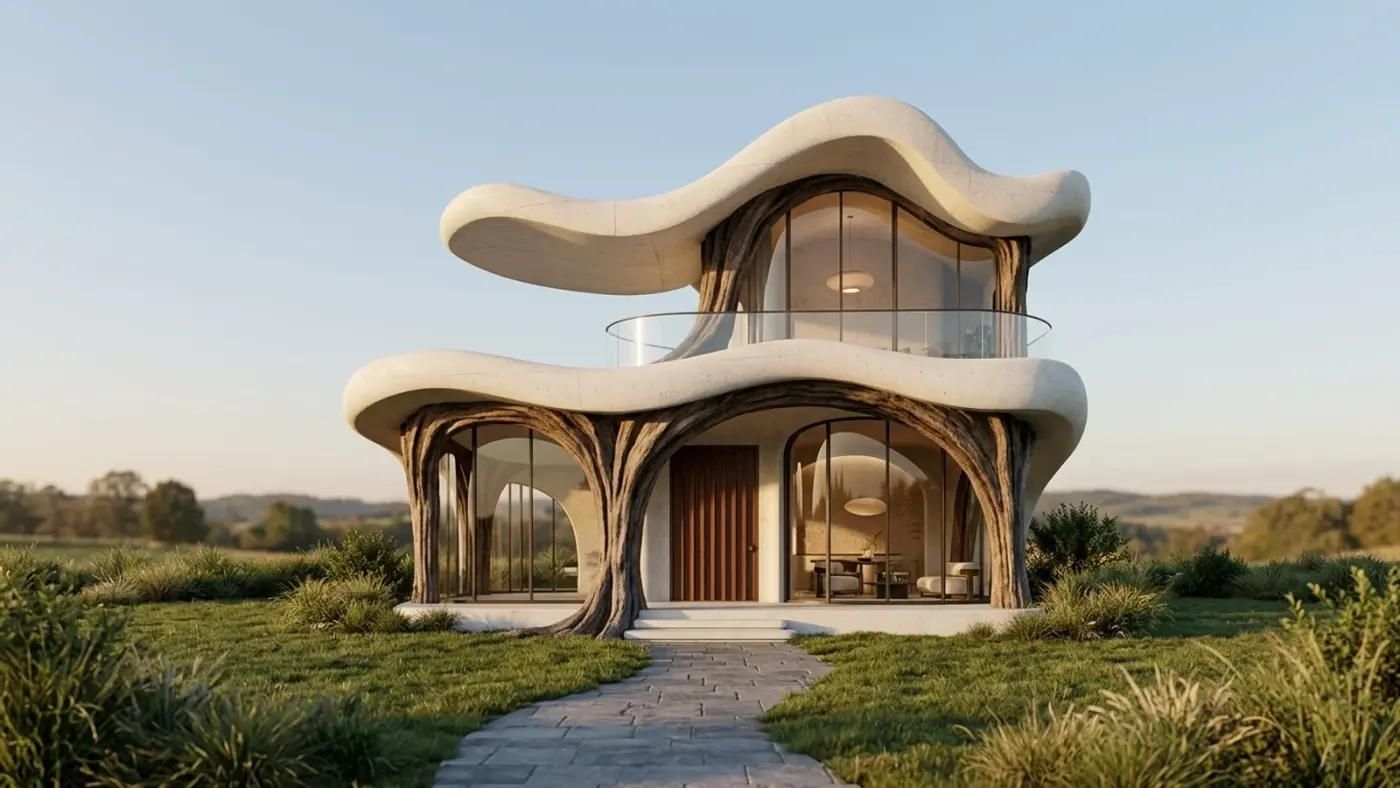
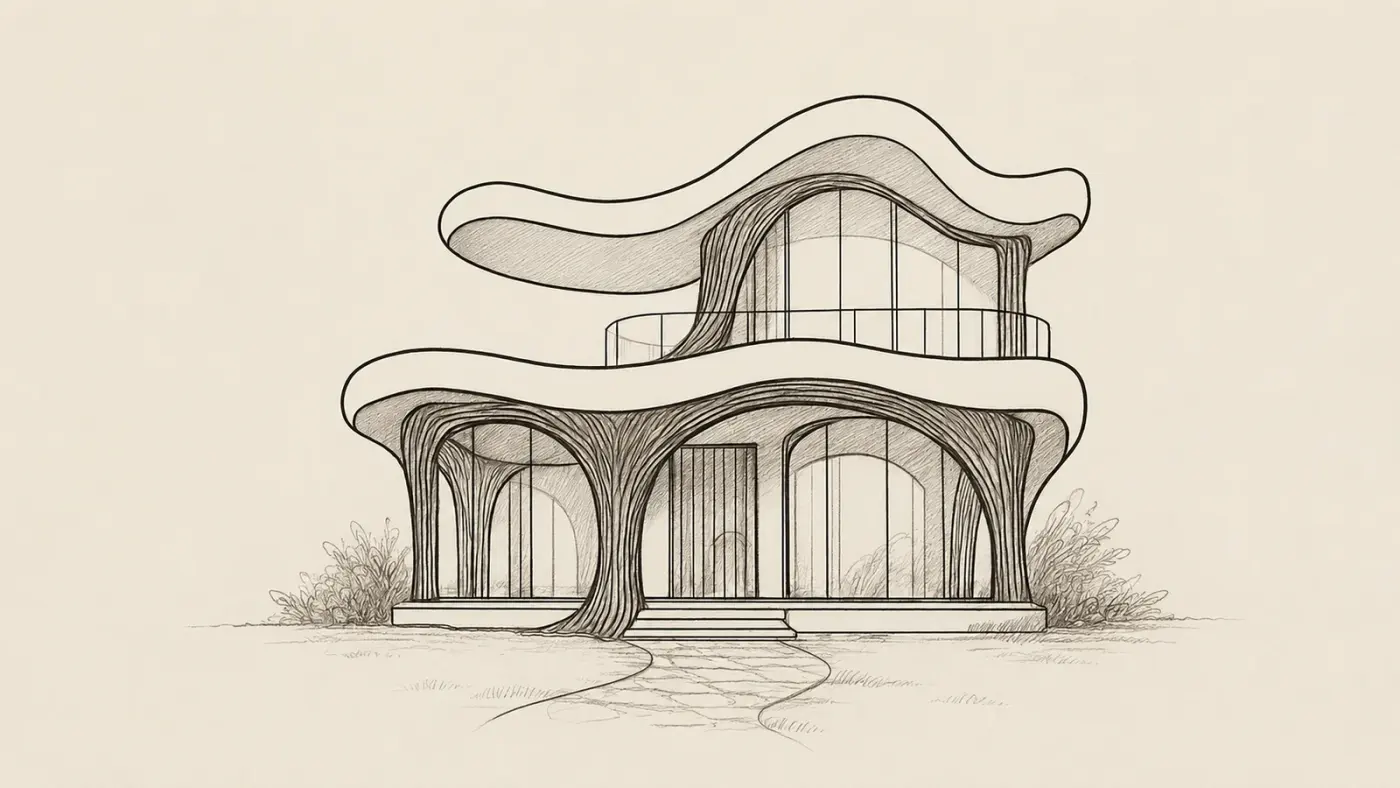
A sketch, rendered with Archome. Demonstration image \u2014 drag the handle to compare.
Side by side
| Twinmotion | Archome AI | |
|---|---|---|
| Core job | Live navigation, walkthrough, animation | Photorealistic stills in 30 seconds |
| Setup before first good image | Model import + materials + lighting | Upload one image |
| Hardware | Dedicated GPU recommended | Any browser, cloud GPU |
| Input flexibility | Your 3D model | Model view, sketch, photo, floor plan |
| Material experiments | Assigned by hand, per option | One prompt edit per option |
| Video | Full path animation | Short cinematic clips from a render |
| Price | Licence per seat | Free tier; plans from $29/mo |
Pricing and features change — check Twinmotion's own site for their current plans. This page compares how the two approaches work, not this week's price list.
Choose Archome AI if
- —You need presentation-quality stills today, from whatever view exists
- —You want to test five material directions before modelling any of them
- —You are on a laptop without a GPU — site office, client side, home
- —Your input is a sketch, a photo or a plan, not a finished model
Choose Twinmotion if
- —The deliverable is a navigable walkthrough or frame-accurate animation
- —Your model is fully materialled and you need many consistent stills of it
Compare them on your own project
Upload one photo, sketch or viewport capture and see what comes back. 100 free credits once at signup, no credit card.
Frequently asked
Is Archome AI better than Twinmotion?+
For most buyers, yes. Archome AI puts 14 tools in one account, returns a render in about 30 seconds, and costs about $0.29 per render on Lite ($29/mo for 100 renders) or $15 one-time for 50 renders with no subscription, with a commercial licence on every paid plan. You can try it with 3 free renders, no card. Where Twinmotion still wins: the deliverable is a navigable walkthrough or frame-accurate animation.
Can I use a Twinmotion viewport capture as input?+
Yes — a plain screenshot of your Twinmotion view is a perfect input. Geometry, camera and openings are preserved; materials and light get the photorealistic treatment you describe.
Does Twinmotion have built-in AI rendering?+
As of 2026, no — it does not generate photorealistic images from prompts or restyle views with AI. See our full guide on Twinmotion AI rendering in the blog for what exists and what does not.
Is Archome AI free to try against Twinmotion?+
There is a trial, not a free tier. A new account gets 100 credits once, with no card. Every free render costs 30 credits and runs on the Fast engine (Ultra is for paid plans), so the trial is three renders in total and it does not renew — enough to judge output on your own project rather than on marketing samples. Anything you publish — an MLS listing, a portal, a client presentation, marketing — needs a paid plan, which carries the commercial licence.
Can I use the renders commercially?+
On any paid plan, yes — files carry a full commercial licence. Free-plan renders are intended for evaluation and personal use.
What should I actually compare?+
Run the same input through both tools and zoom in on the parts that matter: did the window count change, is the wall line still straight, are the proportions still yours? Marketing pages do not settle this — a side-by-side on your own photo does.
Keep reading
Looking for a profession-specific breakdown? See Archome for architects, interior designers, architecture firms and visualization studios — or the plain-english guide to choosing AI rendering software.
Twinmotion is a trademark of its respective owner. Archome AI is not affiliated with, endorsed by or sponsored by Twinmotion. Competitor details are based on their public pages as of the date above.