
Make a 3D Render Look Photorealistic with AI
· Updated · 5 min read
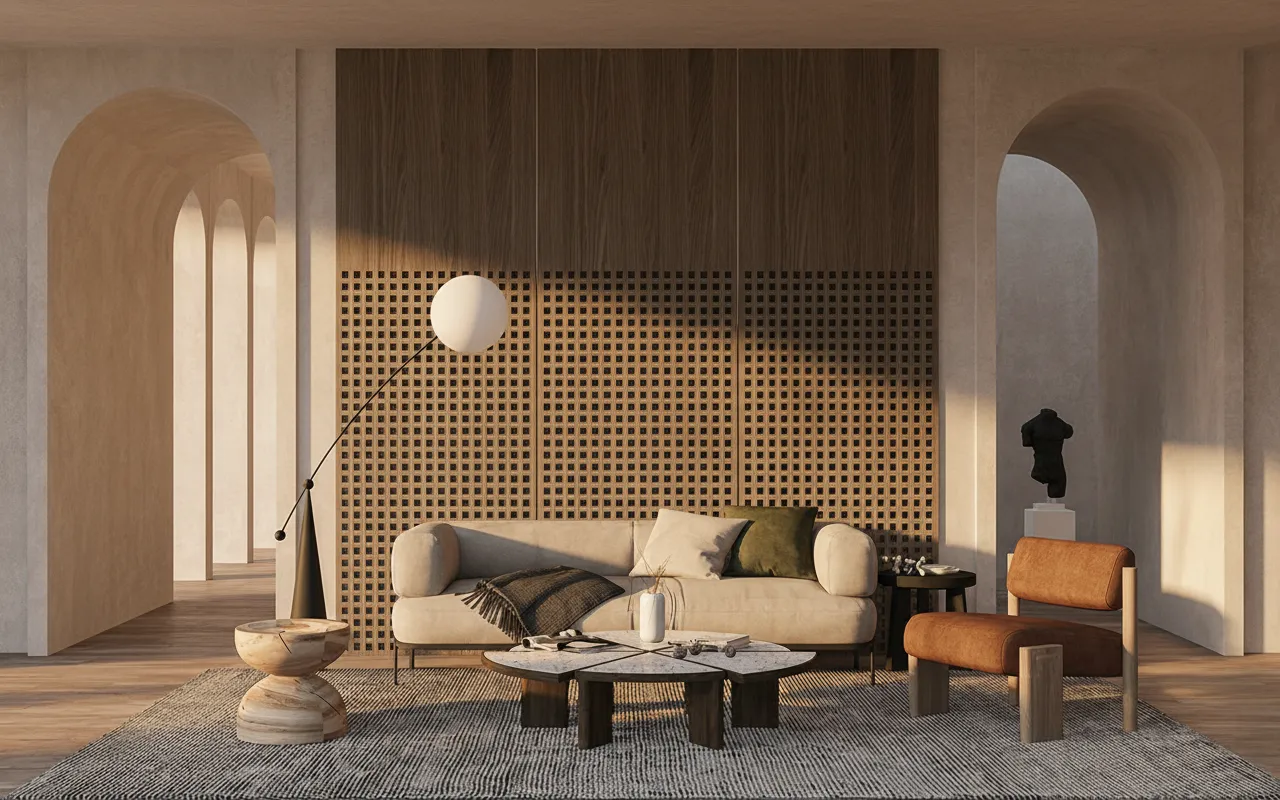
You modelled the building, set up a camera and hit render — but the result still screams “CG”: plastic surfaces, flat lighting, clay-like materials. Making a 3D render look like a real photograph usually means hours of material and lighting work. AI can do that pass for you in seconds, while keeping your building exactly as you designed it.
Why renders look fake
Three things give a render away: surfaces that are too clean (no micro-texture, dust or wear), lighting that’s too even (no real shadow falloff or bounce), and materials that read as a single flat color. Real photos have grain, imperfection and depth. That’s exactly what an AI realism pass adds back.
How to do it
- Upload your render. Drop in your SketchUp, Revit, Blender or Lumion output.
- Tell it to keep the geometry. The AI preserves your building’s shape, walls, windows and proportions — it only changes realism and materials.
- Describe the materials and light. “Travertine and oak, warm afternoon light, soft shadows” beats a generic prompt.
- Generate and compare against your original.
Tips for believable results
- Avoid mannequin people in the source — AI struggles with stiff CG figures.
- Ask for real materials by name instead of “realistic” in general.
- Natural light (“golden hour”, “overcast”) reads far more real than studio lighting.
Not sure which light word to reach for? The lighting and mood prompt library has copy-paste lines for golden hour, blue hour and overcast, each with a note on when it works best.
AI vs re-rendering in V-Ray or Lumion
Re-rendering for realism means more setup time and render minutes for every camera. An AI realism pass is seconds per image and needs no render engine — ideal for early presentations, client options and social posts, where speed and believability matter more than a final production frame.
Try it on your render — upload a CG image and watch it become a photo. Your first renders are free.