Photo to 3D Model with AI: GLB Step by Step
· 4 min read
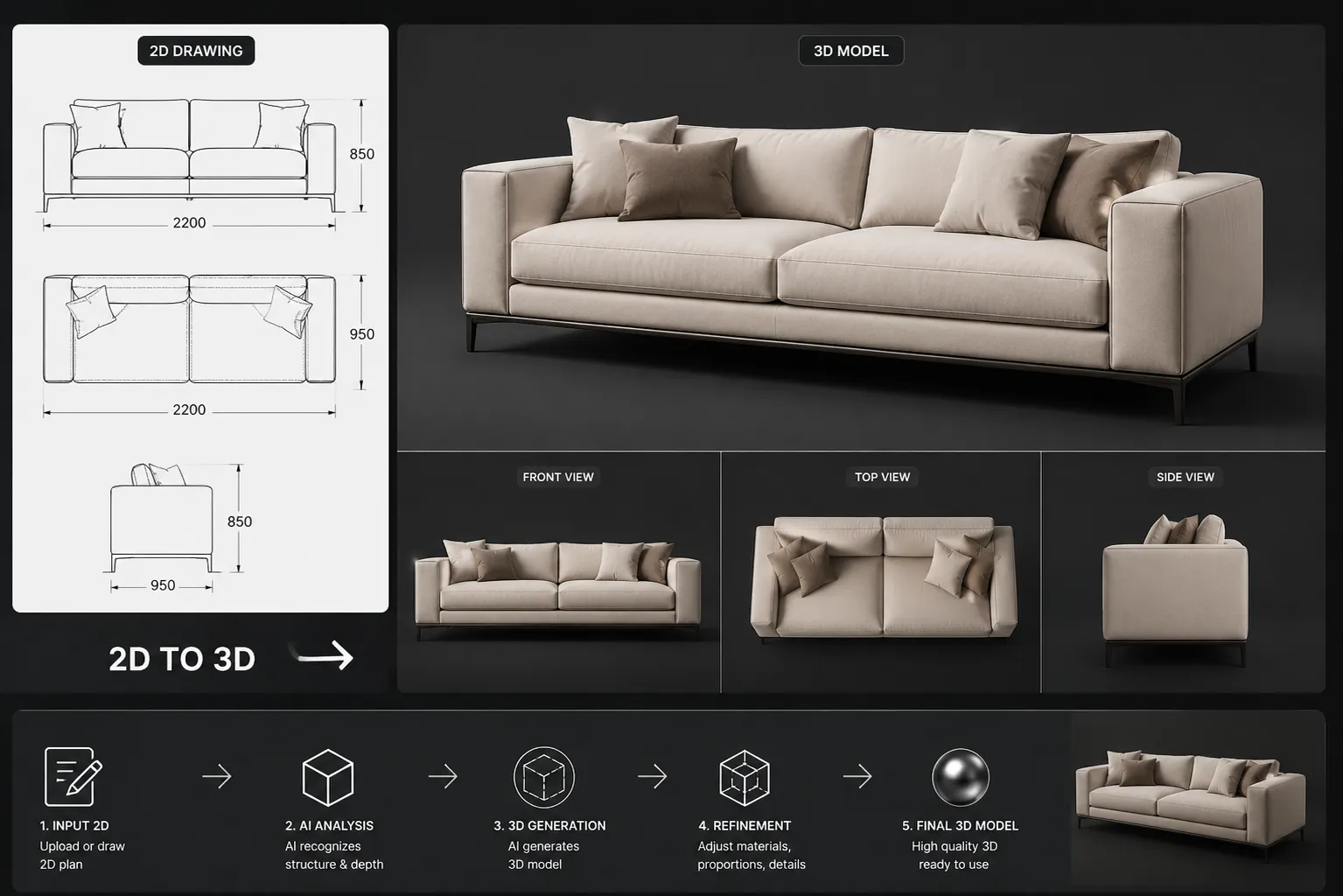
Until recently, getting a 3D model of an object meant modelling it by hand or photogrammetry with dozens of photos. Current AI does it from one image: upload a photo, wait about a minute, and download a textured GLB you can rotate, light and place in any 3D scene.
How it works
- Upload a photo to 2D to 3D — a product shot, a piece of furniture, a decorative object, even a small building.
- The AI reconstructs geometry and texture from that single view, inferring the unseen sides.
- Preview in the browser — rotate, zoom, check silhouettes — then download the GLB.
What to feed it for clean results
- One clear subject. A single armchair beats a full living room. Crop before uploading.
- Neutral background. Clutter behind the object confuses the reconstruction.
- Even lighting. Harsh shadows get baked into the texture.
Where the GLB works
GLB is the most portable 3D format going: SketchUp (via import), Blender, 3ds Max, Unreal, Unity, three.js viewers and AR quick-look on phones all read it. Designers use it to drop real furniture pieces into models; e-commerce teams use it for 360° product views.
Honest limits
Single-image reconstruction guesses the back of the object — logos or patterns on unseen faces will be invented. For hero assets you'll still retopologize; for concept models, staging and client previews, it's ready as-is.
Open 2D to 3D, upload one photo, and pull a real model out of it. Available on the Studio plan.