
Turn a 2D Floor Plan into a 3D Render with AI
· Updated · 6 min read
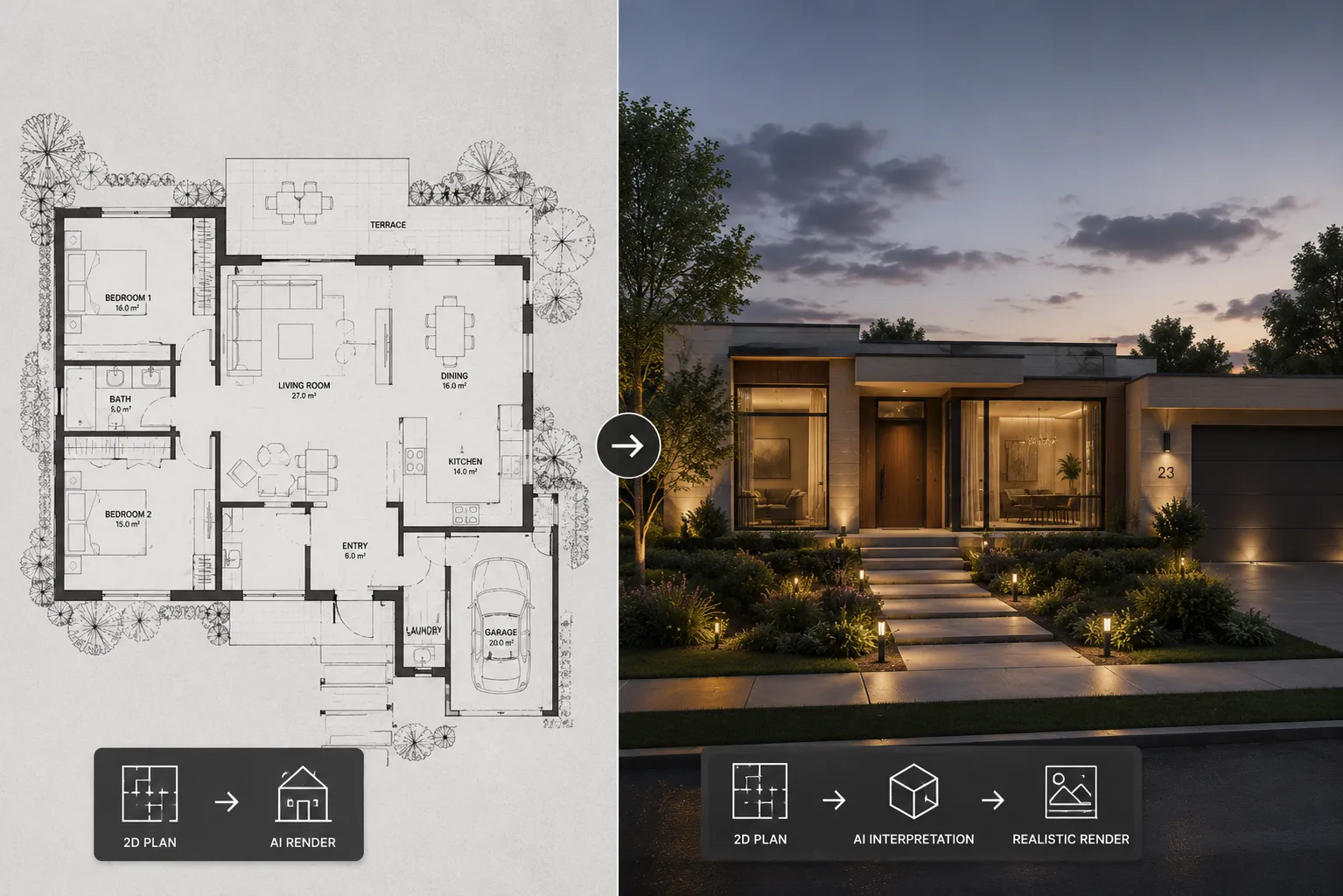
A floor plan tells another architect everything and a client almost nothing. The fastest way to close that gap in 2026 is AI: you convert a 2D floor plan to a 3D rendering — a photorealistic interior view, an isometric 3D cutaway, or even a proper architectural section — in about 30 seconds, without modelling anything. This guide shows how to get a 3D rendering from a floor plan step by step.
Two ways to start
- Draw it in the browser. Plan & Render has a plan canvas: walls, doors, windows, and furniture symbols you drag into place. The AI reads the layout you drew.
- Use an existing plan. A CAD export or even a clean photo of a printed plan works as input for the render step.
- Upload it and let AI read it (new). Upload the plan image — a screenshot of a PDF page, a JPG, a photo of a printed plan — enter the outer building width, and click Read & create plan. About 30 seconds later the walls, doors, windows and furniture are editable objects on the canvas: drag a misread wall into place, swap a sofa, then switch to the 3D view of the same plan. It costs 60 credits, and the result is a draft to check against your drawing before you render.
Choose the output view
- Eye-level interior — as if you were standing in the room. Best for client presentations.
- Isometric 3D — the classic top-down cutaway, roofless. Best for explaining the whole layout at once.
- Section — draw a cut line across the plan and the AI generates a technical cross-section with wall build-ups, furniture in elevation and dimension lines.
Make it match your design intent
- Describe the style in the prompt: “Japandi apartment, oak floors, linen curtains, warm afternoon light”.
- Set the room type — living room, bedroom, clinic reception — so furniture reads correctly.
- Have a specific sofa or table? Attach up to three photo references and the AI places those pieces.
What it costs and where it fits
A plan render costs 30 credits on any plan — the free tier's 100 free credits to start cover three. Architects use it for early space-planning options; real-estate teams use it to turn listing plans into images buyers actually understand.
Note the render step makes a 2D or isometric image. The editable plan itself does open in 3D inside the tool — walls, openings and furniture you can walk around — and exports as PNG, PDF or a project file; if you need an actual GLB mesh to drop into SketchUp, Blender or a web viewer, that's a different tool covered in the photo to 3D model guide.
Try it on a real layout: open Plan & Render, sketch four walls and a sofa, and generate your first view free.