
Krea AI Alternative for Architects (2026)
· 6 min read
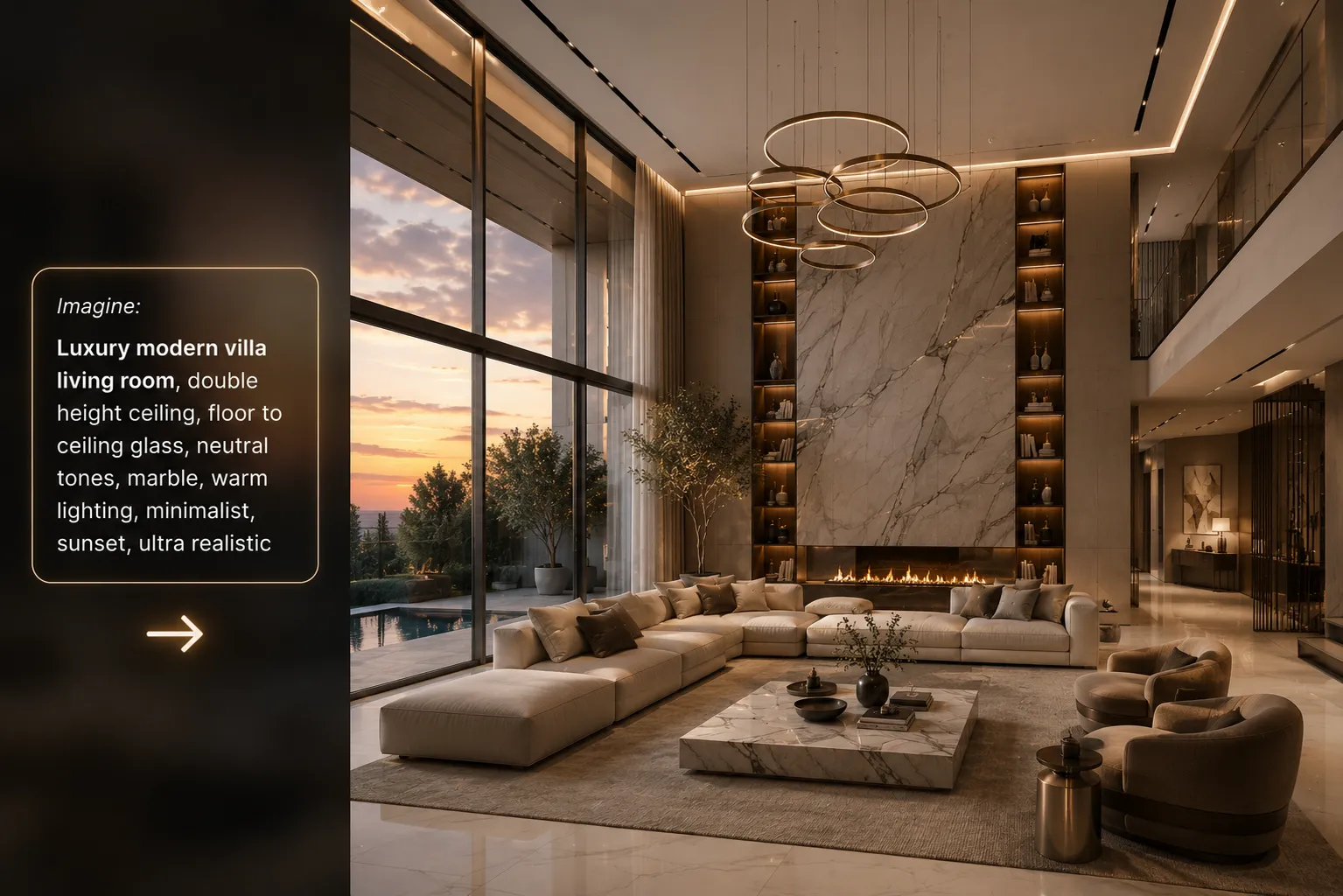
Krea AI built a genuinely good product: a real-time canvas that turns a rough sketch or prompt into an image as you type, plus an upscaler that's become a go-to for cleaning up low-res generations. A lot of architects have it open in a tab already, usually for mood boards or a quick upscale pass. The honest question is whether that's the same job as rendering a project — and it isn't. Here's where Krea AI earns its place and where an architecture-specific tool has to take over.
What Krea AI is genuinely great at
- Real-time feedback. Watching an image resolve as you adjust the prompt or sketch is a fast way to explore a mood or material direction.
- General-purpose upscaling. Its enhancer is well regarded for adding believable detail to a soft or low-resolution image.
- Broad creative range. It isn't boxed into one visual domain, which makes it useful across concept art, product shots and architectural moodboards alike.
Where it breaks for architectural work
- It won't hold your geometry. Like other general image models, it treats a sketch or viewport export as loose inspiration — walls drift, window counts change, proportions reinterpret themselves.
- No camera lock from a model export. There's no workflow for taking an exact SketchUp, Revit or 3ds Max viewport and keeping that precise framing through the render.
- No architecture-specific tools. No floor-plan-to-render, no masked material swap on a real photo, no dedicated exterior or interior restyler tuned on buildings rather than general imagery.
- Not built for a practice's delivery pipeline. There's no SketchUp or 3ds Max plugin, and no workflow shaped around client-facing deliverables at print resolution.
Honest comparison
| Krea AI | Archome | |
| Domain | General-purpose creative AI | Trained for architecture |
| Holds your geometry | No — reinterprets it | Yes — sketch, plan and camera hold |
| Tools | Realtime canvas, upscaler, video | 14 tools: interior, exterior, sketch, plan, video, 3D, material swap |
| Max output | Upscaled, but generic | 4K via a dedicated Enhancer |
| Software integration | — | SketchUp and 3ds Max plugins |
| Free tier | Limited generations | 100 credits to start |
Who should pick which
If the job is a mood board, a material study, or watching an idea resolve in real time before you've committed to a design direction, Krea AI is a fine tool and there's no reason to give it up. It's fast, flexible and doesn't require architectural input to be useful. The moment the source is an actual sketch, a floor plan, or a viewport capture of the design you're presenting on Monday, you need a tool that treats that input as the thing to preserve, not the thing to riff on. That's the gap Imagine AI and the rest of the Archome toolkit are built to close — geometry-aware generation instead of general-purpose reinterpretation, plus a 4K Enhancer pass for anything going to print.
The pattern here isn't new — it's the same split that shows up with Midjourney and other general image models: use the broad tool for open-ended exploration, switch to a domain-specific one the instant the deliverable has to match a real design.
A concrete example
An architect scans a hand elevation sketch and drops it into Krea AI to see it rendered quickly. The result looks convincing at a glance, but the window count on the second floor has quietly changed and the roof pitch doesn't match the section drawing anymore — fine for a Slack message to a colleague, not fine for a client who will compare it against the plans. The same sketch through a geometry-preserving tool keeps every opening and proportion exactly where it was drawn, because the model is holding the input fixed rather than reinterpreting it. Same five minutes of work; only one image survives contact with the actual drawing set.
Verdict
Keep Krea AI for what it does well — fast iteration and upscaling outside of any specific project. Bring in an architecture-trained tool the moment a client, a sketch or a real site is involved. Try the Archome toolkit free — 100 credits to start, no card required — and run your own sketch through both to see the difference on your actual geometry.