
Revit Rendering Without a GPU: AI Workflow
· 5 min read
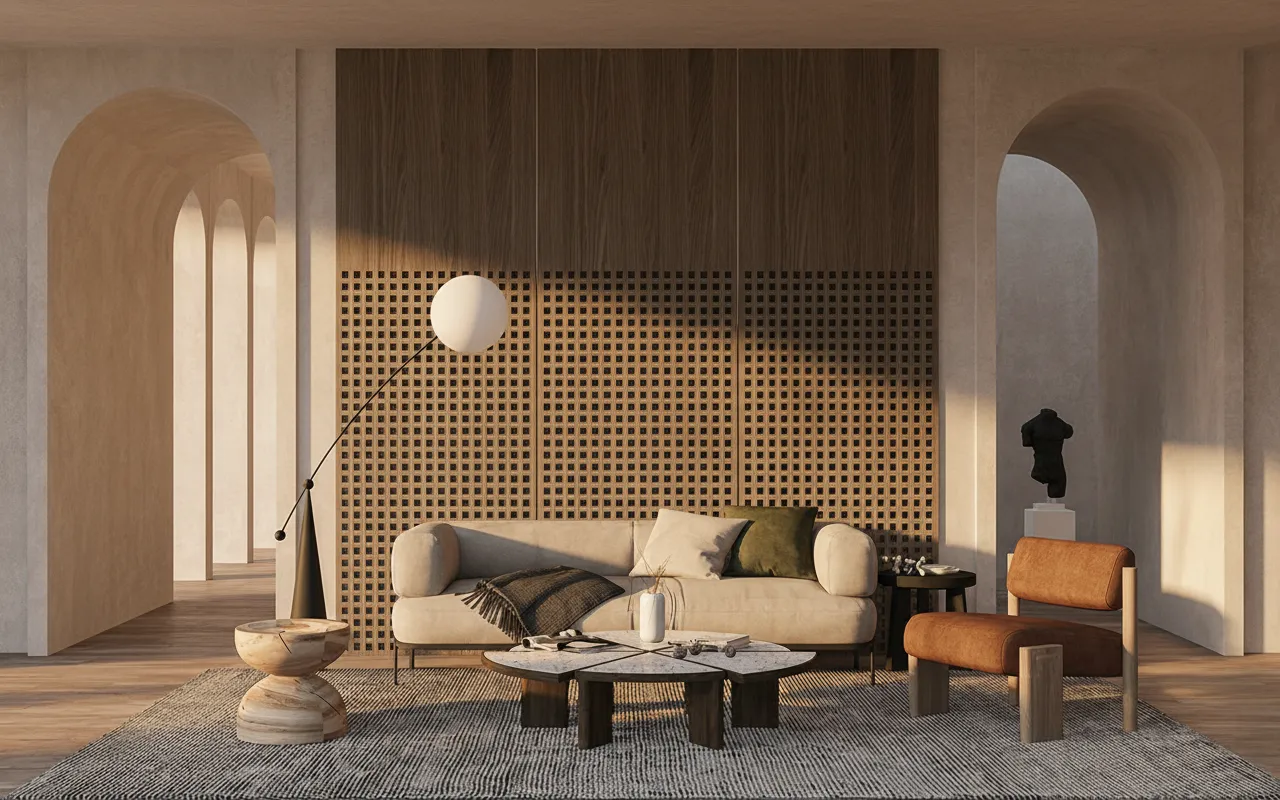
A render-ready GPU is usually the first line item on a BIM visualization budget, and it's the one that's easiest to skip. V-Ray, Enscape and Lumion all render locally, so the machine doing the work needs a graphics card strong enough to carry the load — often a four-figure line on a workstation quote before a single image comes out. An AI workflow built around exporting the Revit view itself sidesteps that cost entirely: the view is uploaded, the rendering happens on someone else's servers, and the result comes back to an ordinary laptop.
That matters more for Revit than for most other CAD tools, because Revit is already heavy on a workstation before rendering enters the picture — large linked models, worksets, sheets and schedules all compete for the same RAM and CPU. Asking the same machine to push real-time ray tracing too is why firms end up buying a second, GPU-heavy machine just for visualization. Skipping that purchase isn't a compromise on the image — it's a different place to do the computation.
The workflow itself is short enough that the GPU question barely needs raising: export or screenshot a 3D view, upload it, describe the materials and mood in plain language, and a photorealistic render of that exact view comes back in about 30 seconds. The Revit rendering tool runs the whole thing in a browser tab, so the hardware question becomes "does this computer have a browser" rather than "does this computer have a graphics card."
Why Revit rendering usually means buying a GPU
V-Ray and Enscape are real-time or near-real-time engines: they trade render quality for the ability to preview changes instantly, and that trade only works with a capable GPU under the hood. Lumion is more forgiving but still recommends a dedicated card with several gigabytes of VRAM for anything beyond small models. None of that is a vendor overreach — ray tracing and path tracing are genuinely GPU-bound work, and a weak card renders slowly or badly. The result is a tier of hardware a firm budgets for separately from the machines everyone already uses for modeling, plus a bottleneck whenever the one good machine is busy on someone else's project.
What changes when rendering moves off the workstation
Cloud-based AI rendering removes the local GPU requirement by removing the local rendering. The exported Revit view — correct proportions, real wall and window positions, honest massing — is the input; the AI's job is to add what a flat BIM viewport lacks: materials with texture, believable light, sky and context. That computation runs on remote hardware built for the job, so the laptop on your end only needs to display a browser tab and wait roughly 30 seconds.
- No dedicated render card to buy, maintain or eventually replace. The budget line disappears rather than shrinking.
- No local render queue. Several people on a team can generate images at the same time without fighting over the one GPU-equipped machine.
- No plugin or licence tied to a specific Revit version. The input is a plain exported image, so a Revit upgrade or a teammate without a Revit seat doesn't block the visualization step.
The workflow, step by step
- Set up the view in Revit. A 3D or camera view with a Shaded or Consistent Colors visual style reads best; hiding annotation categories keeps the export clean.
- Export or screenshot it. An image export, a print-to-image, or a plain screenshot of the view window all work — no add-in installation on the Revit machine.
- Upload it and describe the finish. Plain language is enough: "brick and glass facade, overcast daylight, mature street trees." No material library to map, no lighting rig to set up.
- Get the render back in about 30 seconds. Same massing, same camera, same proportions — the AI changes the presentation layer, not the geometry.
What a dedicated render engine still does better
This workflow is not a replacement for V-Ray or Enscape on every job. A real-time engine gives a live walkthrough you can steer in the moment, precise control over individual materials and light sources, and output that holds up under close technical scrutiny. The AI workflow trades that control for speed and zero hardware cost — it's built for a convincing still image, fast, not a full lighting-design pass. Firms that already own the GPU and the licence will likely keep using them for final presentation renders; this is the tool for every render before that stage, and for the teams who were never going to buy the GPU in the first place.
FAQ
Do I need any graphics card at all to use this workflow? No. Rendering happens in the cloud, so a standard laptop with a browser is enough — the same machine that already struggles to carry Revit itself doesn't need to carry rendering too.
Will the render match my Revit model's geometry? Yes — the render is generated from your actual exported view, so massing, proportions and camera angle carry through. Only the presentation layer changes.
Is this free to try? Yes. Every new account gets a one-time 100-credit trial — about three renders, no credit card required — before paid plans with more credits and a commercial licence.
Already have a Revit export sitting in a folder somewhere? Open the Revit rendering workflow and see what it looks like photorealistic — no plugin, no GPU, and the first renders are free.