SketchUp AI Render: Photoreal from Any View
· 6 min read
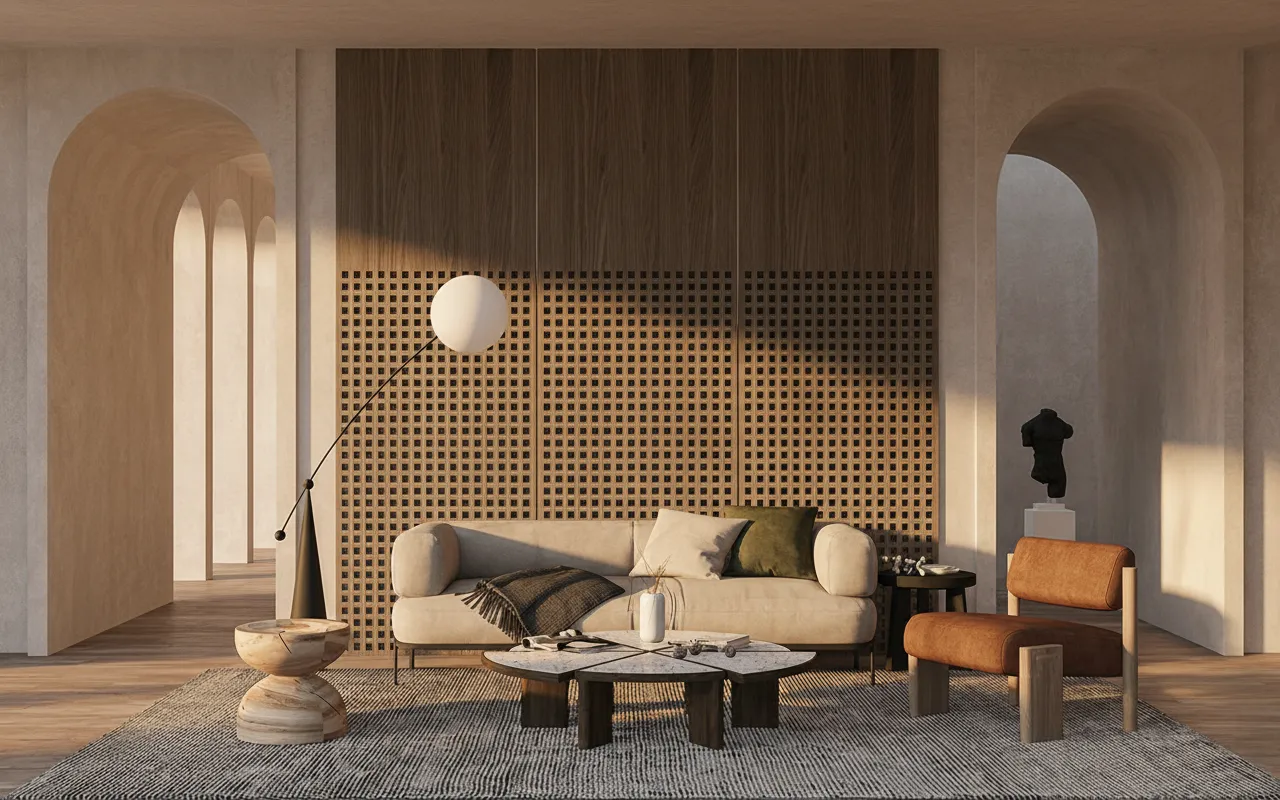
A SketchUp model is enough to design with, but it is rarely enough to sell. The moment a client or a planning board needs to see the project rather than imagine it, flat faces and the default sky stop being good enough — and the usual answer, a real-time renderer like Enscape, means a capable GPU and a licence that starts around $47 a month before anyone has rendered a single frame. SketchUp AI render skips that cost entirely: take a screenshot of the view you already framed in SketchUp, upload it, and get a photorealistic image back in about 30 seconds, from whatever laptop happens to be open.
The free Archome SketchUp plugin makes the first step a single click — it grabs the active viewport and sends it to the cloud without an export step. But the plugin is optional, and that matters more than it sounds: a plain screenshot or a 2D export of your model works exactly the same way, so there is nothing to install if you just want to try it on one view before deciding whether the plugin earns a permanent place in your toolbar.
Either path lands in the same place, the render tool itself, where you describe the materials and mood in a sentence — "white render facade, oak cladding, late afternoon sun, landscaped garden" — instead of hunting through material libraries and lighting rigs. What comes back keeps your geometry, your proportions and your camera exactly as you set them in SketchUp; what changes is the surface layer, where flat faces become real materials and an empty background becomes believable light and context.
Why this beats a real-time renderer for most SketchUp work
Enscape and Lumion are genuinely good at what they do — live, interactive walkthroughs where you nudge a material and watch it update instantly. That is worth paying for on a project that needs a cinematic flythrough. But most SketchUp work never gets that far: it is one view, maybe three, that need to look convincing enough for a client email or a planning submission by the end of the day. Paying for a GPU-bound licence to produce three still images is solving a bigger problem than the one in front of you.
Rendering in the cloud also removes the hardware question entirely. A real-time engine needs a dedicated graphics card on the machine doing the work, which rules out a lot of five-year-old laptops and most machines a student can afford. Because the heavy lifting here runs on Archome's servers, the same workflow renders identically on a workstation or on whatever a design studio hands a junior architect in their first week.
Getting a usable render from a SketchUp view
- Frame the view in SketchUp as you normally would. Camera position, field of view, whatever entourage you have modelled — all of it carries through, so set it up the way you'd want the final image to look.
- Capture it. One click in the plugin, or a screenshot / exported image if you haven't installed it yet. Either input works the same from here on.
- Describe the finish, not the geometry. Materials, lighting mood, time of day, surroundings — plain English is the whole brief.
- Compare before sending it anywhere. Check the render against your SketchUp view to confirm the camera and massing held, then it's ready for a client, a planning package or a portfolio.
Who actually needs this
Architects and designers who model in SketchUp day-to-day but don't want to own and maintain a render farm for occasional client visuals. Small studios and freelancers who can't justify an Enscape seat for the handful of photoreal images a typical project actually needs. Students rendering coursework on laptops that would stutter on a real-time engine. And anyone who just needs one convincing image of one view, today, without a software decision attached to it.
Frequently asked
Do I need the SketchUp plugin to use this? No. The plugin is a convenience — one click instead of a screenshot — but a plain image of your SketchUp view works identically as an upload.
Will it change my model's proportions? No. The render is generated from your actual view, so geometry, massing and camera angle carry through unchanged; only materials, light and surrounding context are added.
Can a studio share one account across a project? Every plan is a single account with no per-seat logins. If a team needs to draw from one shared credit pool, that is set up on request on the Enterprise tier.
Is it free to try on a real model first? Yes. A new account gets a one-time 100-credit trial with no card required, which covers three renders — enough to test the workflow on your own SketchUp view before deciding on a plan.
Stop paying for a GPU to prove a concept. Upload a screenshot of your SketchUp view and see it photoreal in about 30 seconds — free to try.