Leonardo AI for Architecture: Strengths & Limits
· 6 min read
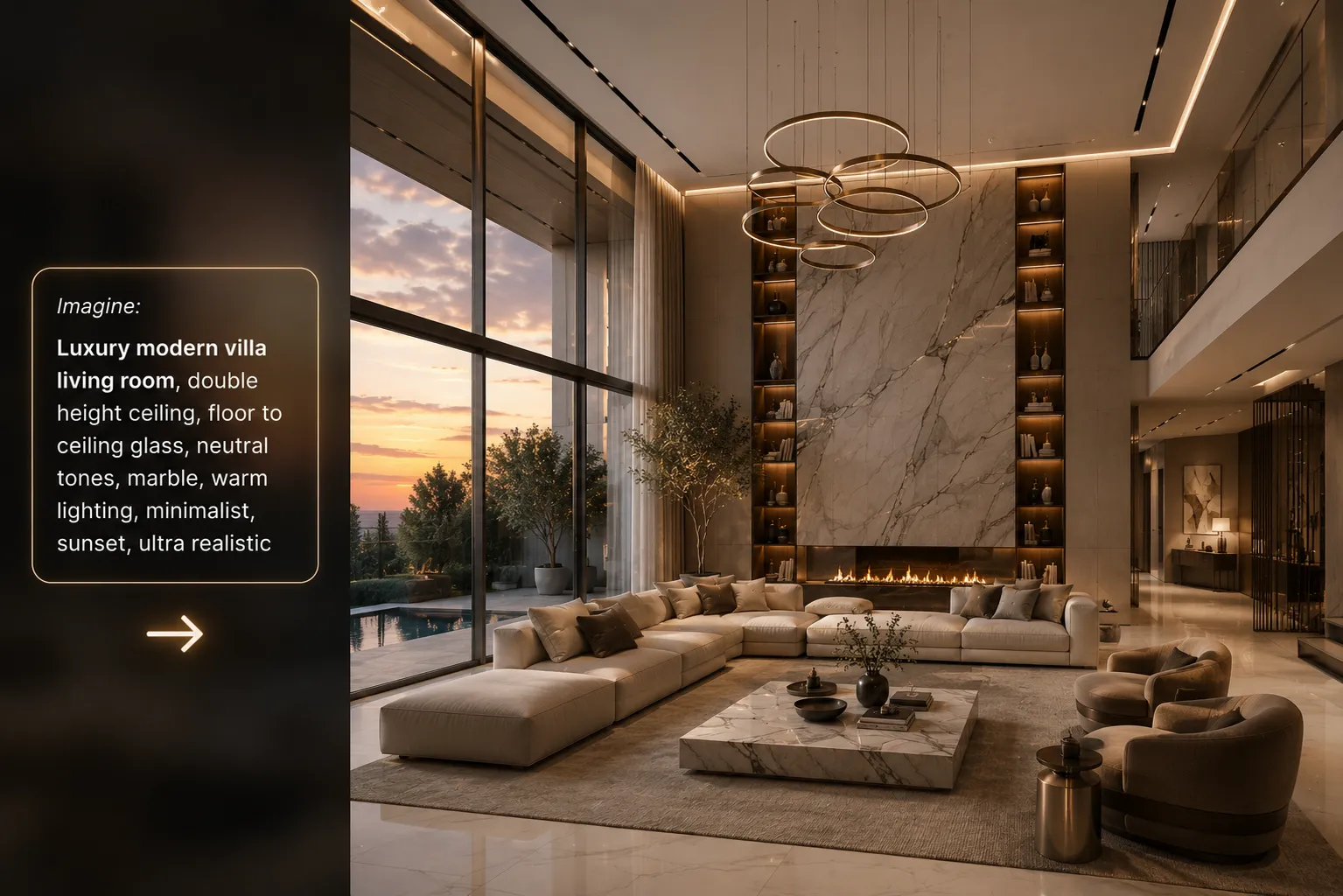
Leonardo AI built a genuinely large following among concept artists and game studios by making text-to-image generation fast, flexible and cheap to try. Architects noticed too — a free daily token allowance and a library of fine-tuned models make it tempting to point at a project instead of paying for a rendering-specific tool. Here's an honest look at where that works, and where it doesn't.
What Leonardo AI is genuinely good at
- Fast, varied concept art. Text prompts turn into finished-looking images in seconds, across a wide range of fine-tuned model styles.
- A real canvas-editing workflow. Its in-app canvas lets you extend a composition, mask a region and regenerate part of an image, which goes further than a plain text-to-image box.
- A genuinely free way in. A daily token allowance means you can explore the tool and build a feel for prompting before spending anything.
- Upscaling built in. A one-click upscale pass sharpens output for a bigger canvas or a cleaner presentation slide.
Where it breaks for architectural work
- It doesn't hold your geometry. Leonardo is built around text prompts and general-purpose image guidance, not around preserving a specific building's walls, openings and proportions. Feed it your sketch or elevation and you get a building in that mood — not a photoreal version of the one you drew.
- No camera lock from a model or viewport. There's no workflow for taking the exact angle you set up in SketchUp or Revit and rendering that view specifically.
- No architecture-specific inputs. No floor-plan-to-3D, no facade-only restyle that respects an existing structure, no CAD or BIM plugin.
- Stills only. No walkthrough video and no image-to-3D-model output — both increasingly common client asks.
Honest comparison
| Leonardo AI | Archome | |
| Best for | Concept art, mood boards, ideation | Rendering your actual sketch, model or photo |
| Geometry preservation | Not the focus | Core feature — walls, openings, camera held |
| Inputs | Text prompt, general image guidance | Sketch, viewport, room or facade photo, floor plan |
| Beyond stills | — | Walkthrough video, 2D-to-3D (GLB), 4K enhancer |
| CAD integration | — | Free SketchUp and 3ds Max plugins |
| Free tier | Daily token allowance | 100 credits to start, no card |
The workflow that actually works
The two tools pair well when you use each for what it's built for. Diverge on mood and material direction in Leonardo — generate a batch of concept images around the brief and pin the ones that land. Reduce each pinned image to a short description of materials and light, then apply that description to your real sketch, viewport export or site photo in Sketch to Render or Exterior AI. Your geometry and camera stay fixed; only the mood transfers from the concept art to the actual design. It's the same two-tool pattern that works well with Midjourney — a general image model sets the direction, an architecture-specific tool makes it true to the drawings.
Who should pick which
If the deliverable is a mood board, a competition board's atmosphere, or early ideation before a single line is drawn, Leonardo AI's speed and style range genuinely earn their place. The moment a real sketch, an actual room, or a client-approved camera angle enters the picture, a tool that preserves geometry instead of reinterpreting it becomes the safer choice — the render needs to survive being held up next to the drawings.
Verdict
Keep Leonardo AI in the toolkit for what it does best: fast, varied concept imagery when the design isn't fixed yet. Once you're rendering an actual project, switch to a tool built to respect what you already drew or modelled. Try Imagine AI free on the same brief, or compare the wider field in the 2026 AI rendering tool roundup — first renders don't cost anything either way.