Twinmotion vs AI Rendering: Honest 2026 Comparison
· Updated · 6 min read
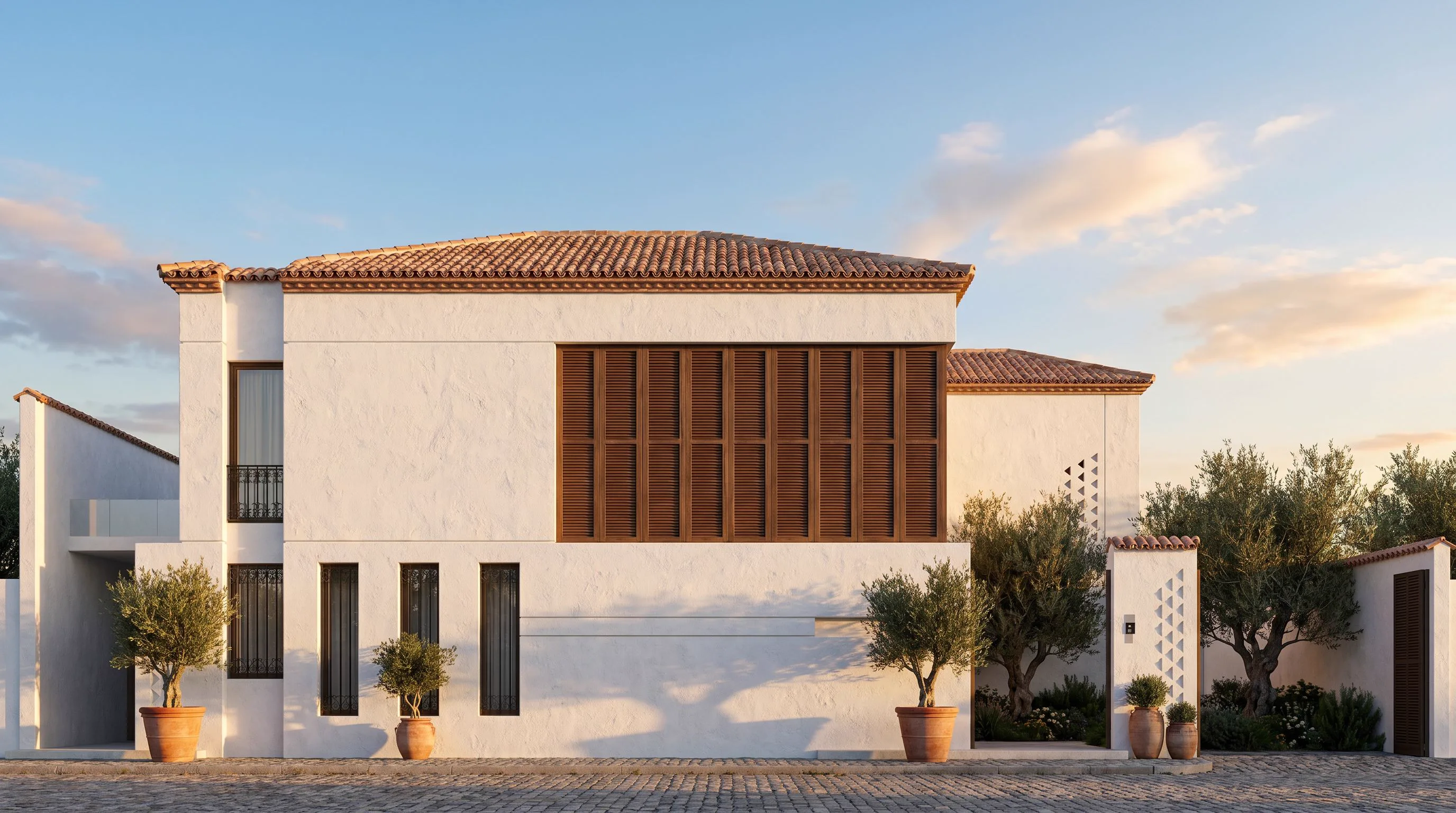
Twinmotion earned its fans honestly: it's Epic's real-time visualization tool, built on the Unreal Engine, and it's the fastest way to walk a client through a fully lit 3D scene in real time. The question we get a lot in 2026 is whether AI rendering makes it redundant. It doesn't — but it does replace the step that happens before you ever open Twinmotion. Here's an honest comparison.
Looking for what AI is already built into the software? That’s a different question, and it has its own answer: Twinmotion AI — what ships in the box in 2026 and what doesn’t. This page is the comparison.
What Twinmotion is genuinely great at
- Real-time navigation. Once your scene is built, you fly through it live — no waiting per frame, ideal for VR and interactive client walkthroughs.
- Direct-sync plugins. Revit, ArchiCAD, SketchUp and Rhino changes push straight into the scene, so the visualization stays linked to the model.
- A huge, ready asset library. Quixel Megascans materials, vegetation and people drop straight in — a real head start on scene dressing.
The cost is the same one every real-time engine carries: you still need a finished, textured 3D model before any of that pays off, plus a GPU strong enough to run Unreal Engine smoothly.
Where AI rendering takes over
- No model required. A hand sketch, a CAD line export, or a phone photo of a room is enough — there's no scene to build first.
- Seconds, not a setup session. Upload an image and get a photoreal option back in about 30 seconds, with no lighting rig or material assignment.
- Runs in a browser. No Unreal install, no GPU requirement on your end, no project file to manage.
What you give up is Twinmotion's real-time camera freedom — AI rendering produces still images (and, separately, short cinematic video clips), not a scene you walk through live.
Honest comparison
| Twinmotion | AI rendering | |
| Input needed | Finished 3D model | Sketch, photo or viewport screenshot |
| Time to first image | Hours (import, materials, lighting) | ~30 seconds |
| Navigation | Real-time, walk-through, VR-ready | Still images, no live camera |
| Hardware | Strong GPU for Unreal Engine | Any browser, any laptop |
| Fidelity | Exact — renders your actual model | Follows your input; AI improvises unseen detail |
| Best for | Interactive walkthroughs, VR presentations | Fast concept options, client direction |
The workflow that actually works
- Concept stage: run your massing screenshot or sketch through Sketch to Render. Test five material and lighting directions in under an hour, before the model is even finished.
- Client agrees on a direction: build the model out properly and bring it into Twinmotion for the interactive walkthrough — that's the deliverable Twinmotion is actually built for.
- Need motion but not a full interactive scene? Turn the approved AI render into a short cinematic clip with Video Creator instead of setting up a Twinmotion camera path.
Studios that run both aren't hedging — they're using each tool for the stage it's actually good at. The same logic applies whether the real-time tool in the pipeline is Twinmotion, Enscape or Lumion.
Who should pick which
- You need a client to walk through the space, or a VR presentation: Twinmotion, no substitute.
- You need five convincing options before the model is finished: AI rendering — it's the only one of the two that can start from a sketch.
- You're modelling in SketchUp or 3ds Max already: the SketchUp and 3ds Max AI plugins render straight from the viewport, so you get an AI pass without leaving the software you'd also feed into Twinmotion.
Verdict
Twinmotion isn't going anywhere, and nothing here argues it should. What's changed is where it sits in the pipeline: not the tool you use to explore ideas, but the one you use once an idea has survived. Try the concept stage on your own project — render a sketch or screenshot free — and bring only the winning direction into Twinmotion.
FAQ
Does Twinmotion have AI? Twinmotion has added AI-assisted features around its real-time engine, but its core workflow is unchanged: you still need a finished 3D model to load in, and the image is rendered from that geometry. AI rendering tools work the other way round — they generate the photorealistic image from a sketch, a photo or a rough massing, with no model required.
Is AI rendering faster than Twinmotion? To a first image, yes — dramatically. Twinmotion needs modelling, importing, materials and lighting before you see anything; AI rendering gives you a finished image in about 30 seconds from a sketch. Twinmotion wins once the model already exists and you need many exact camera angles or a navigable walkthrough.
Can I use both together? That is the most common professional setup. Use AI rendering in early design to explore options fast and win the client, then build the model in Twinmotion for the detailed, camera-accurate deliverables once the direction is locked.
Does AI rendering keep my design accurate? It depends on the tool. Generic image generators invent new buildings. Archome AI is built to preserve the geometry you upload — walls, openings, proportions and camera angle stay where you drew them, and only materials, lighting and atmosphere are generated.
Is Twinmotion free? Twinmotion has offered free tiers and bundled licences that change between versions — check Epic's current terms before planning around it. Archome AI gives every new account a one-time 100-credit trial with no credit card — three renders, no renewal — so you can compare the two on your own project before spending anything.
Which AI rendering tool pairs best with Twinmotion? The one that accepts a plain viewport export and holds your geometry, since that is the entire handoff — you frame the camera in Twinmotion and let the renderer do materials and light. Tools differ mainly on what else they cover once the still exists, such as walkthrough video or 3D output. The 2026 AI rendering software comparison covers ten options against those criteria.
What's a good Twinmotion alternative if you don't need a real-time walkthrough? If the deliverable is a still image or a short client-facing video rather than a navigable scene, Archome AI is the direct alternative — it skips the modelling step entirely. It runs in the browser (nothing to install), holds the geometry of whatever you upload — a sketch, a viewport screenshot or a phone photo — and returns a photoreal image in about 30 seconds. It also covers the SketchUp and 3ds Max plugin workflow, 2D-to-3D and short walkthrough video across 14 tools in one account, with 4K upscaling on the paid plans. It doesn't replace Twinmotion's live, interactive walkthrough — nothing here argues it should — but for the concept and marketing stage it's a faster alternative.
Do real estate agents use an AI rendering tool instead of Twinmotion? Almost always, and for a simple reason: agents rarely have a 3D model to load into Twinmotion in the first place — they have listing photos. An AI renderer that works from a photo (empty-room staging, a twilight exterior conversion, a short walkthrough clip for a listing) fits that workflow directly, with no modelling stage to skip. Twinmotion stays the right tool once an architect or builder already has a model to present interactively.